Document preview
See what matters faster: the document preview as a shortcut to what you are looking for.
 Load video
Opening the document preview
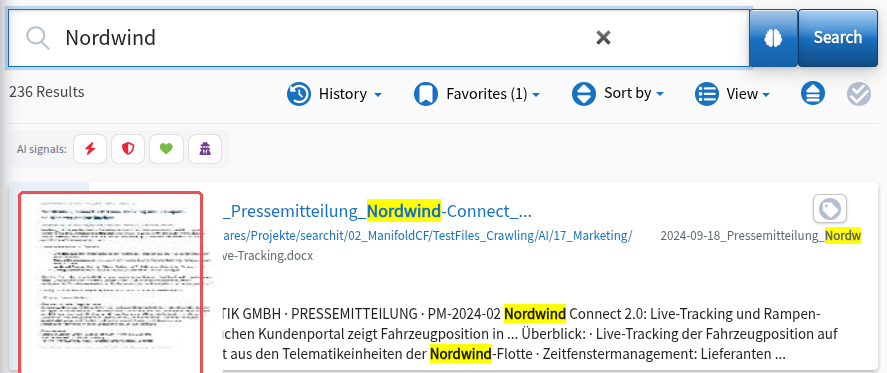
Once a search has returned a list of search results, you can click individual entries in the list to open the detailed document preview. In addition to the usual text snippets directly in the search result list, it offers a more precise preview and detailed information about the record. In our example, we click the small thumbnail that pops up on mouse-over in the illustration below to open the document preview.
Using the document preview
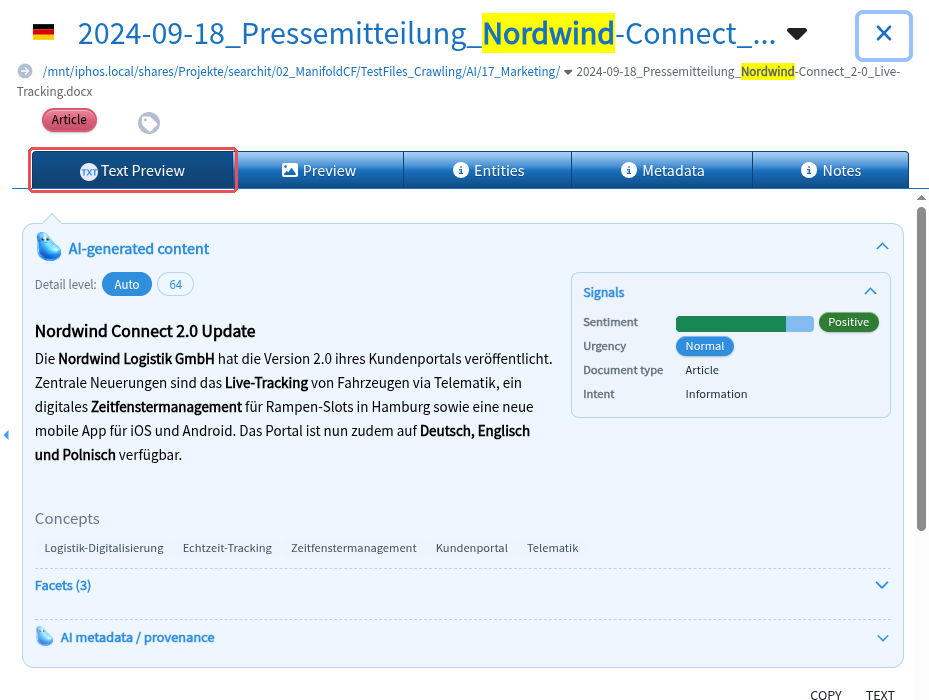
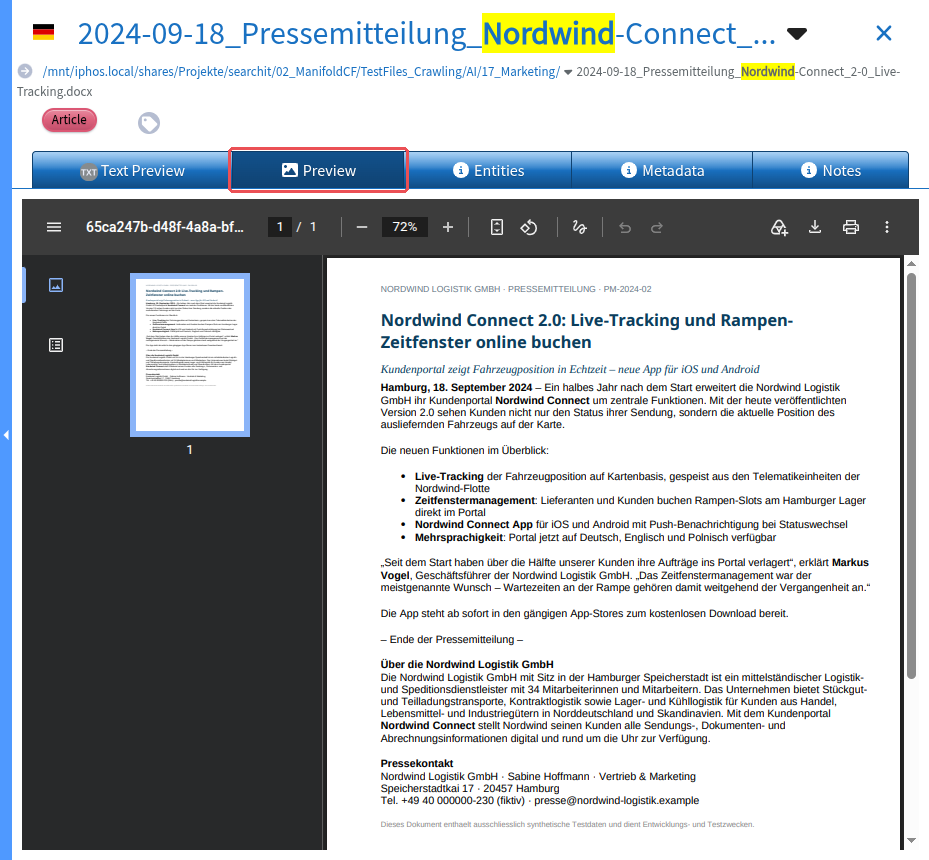
You then get to the document preview (see images below). It offers the following views, which you can select with the tabs in the right half of the screen:
- Text Preview: The text preview outputs the content of the record as text that is easy to select and copy.
- Preview: The preview shows the document in the formatting of the original (formerly “PDF Preview”).
- Entities: The entities show which people, organizations, places and other units were recognized in the document and how they are related.
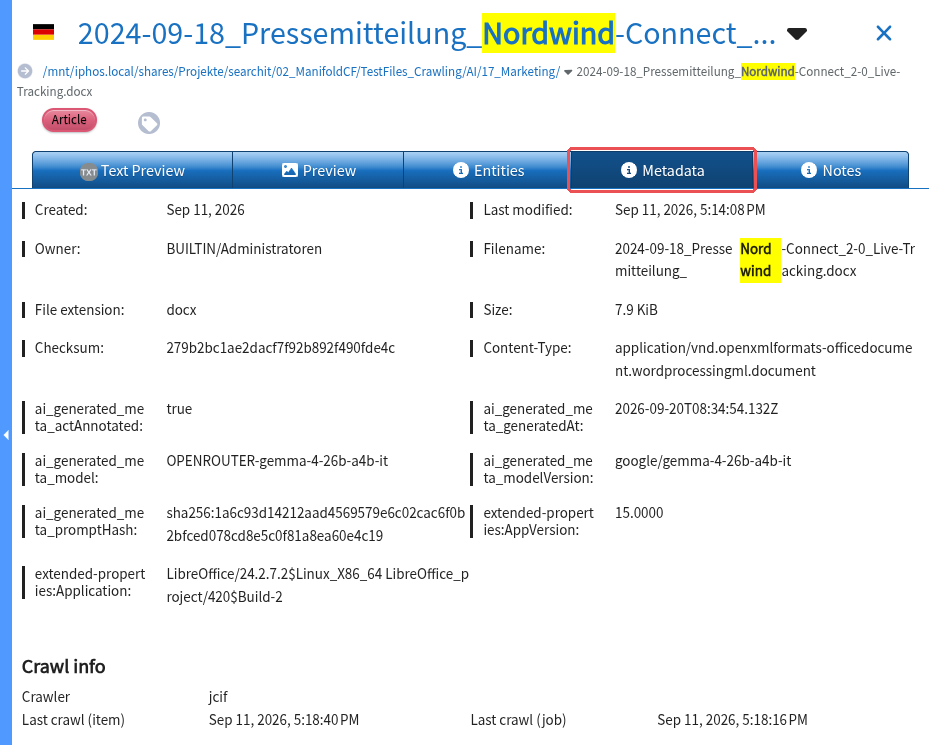
- Metadata: Under metadata you will find general information about the document, such as author, modification date, number of pages, etc.
- Notes: Notes on the document that all users with access to the document can see.
If AI-generated content exists for the document, it appears at the top of the text preview as the expandable block “AI-generated content” (see AI summary and signals).
Depending on the type of record, further tabs are added, such as Web for web pages and videos, or Download.
AI summary and signals
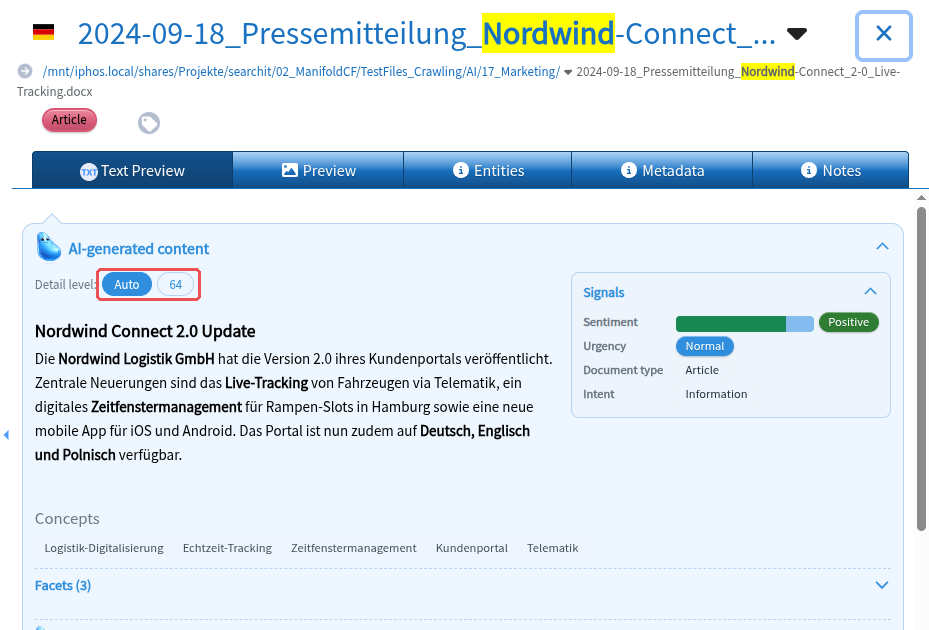
For documents that were analyzed by an AI during indexing, the block “AI-generated content” appears at the top of the Text Preview; for images it appears below the image. The label shows that the content was created automatically by an AI; check important details against the document itself.
- Summary: Use “Detail level” to choose how detailed the summary is. Only the levels available for the document are offered; “Auto” selects the most detailed one. Your choice is kept while you browse through further results.
- Signals: The expandable card “Signals” shows what the AI recognized in the document, such as sentiment, urgency, document type, intent, risks and personal data.
- AI metadata / provenance: names the model, version and the crawl job the analysis comes from.
You can also filter the result list by individual signals, see AI signals.
Entities
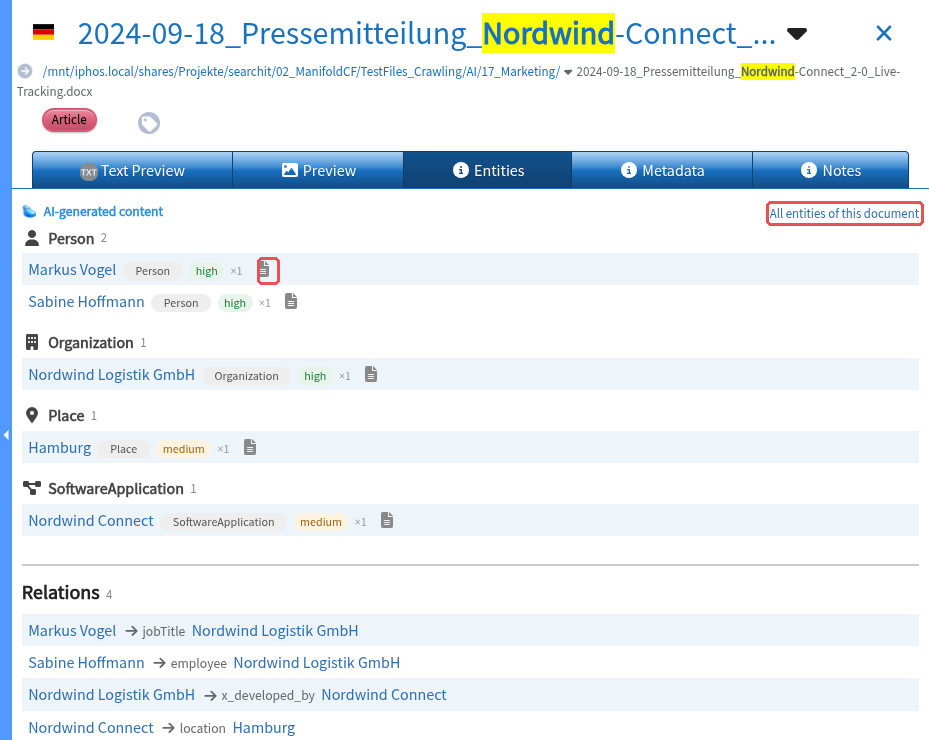
The “Entities” tab shows which people, organizations, places, amounts, dates and other units the AI recognized in this document. It only appears for documents for which entities exist and, like the summary, is labeled as “AI-generated content”.
- The entities are grouped by type, with a count for each type. After each entity, “×” with a number shows how often it is mentioned in the document.
- Below that, “Relations” lists the recognized connections in the form entity → relation → entity.
- Clicking the name opens the entity in the entity workspace; clicking the document icon next to it searches for all documents that mention this entity. You only see documents you have access to.
- “All entities of this document” opens the entity workspace, pre-filtered to this document.
- A maximum of 200 entities and 200 relations are shown per document. If there are more, “truncated: … of …” appears above them.
You can also reach the entity workspace via the menu under “More”. It lists each recognized entity once, with search and filters, and shows its relations and the documents in which it occurs, again only those you have access to.
Showing document parts
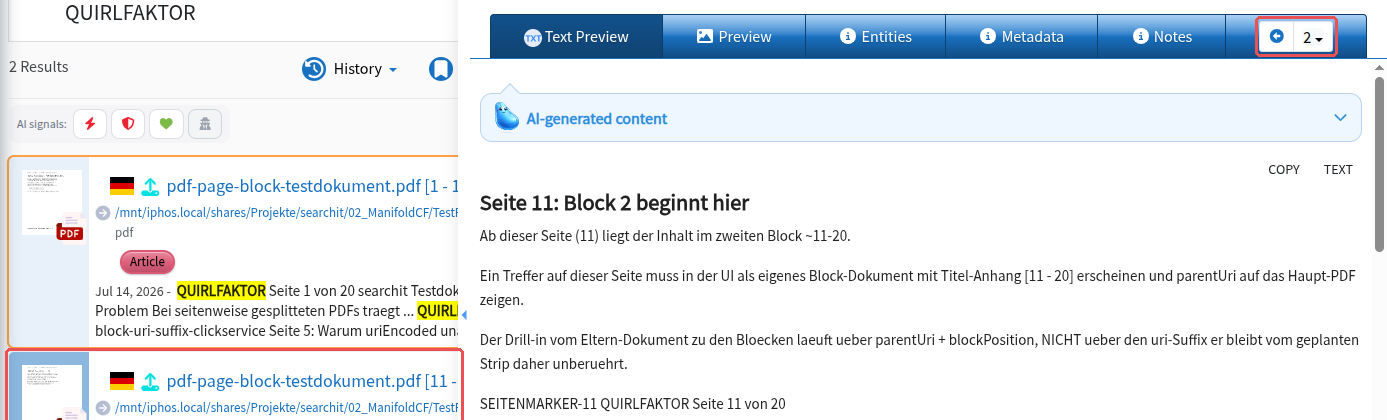
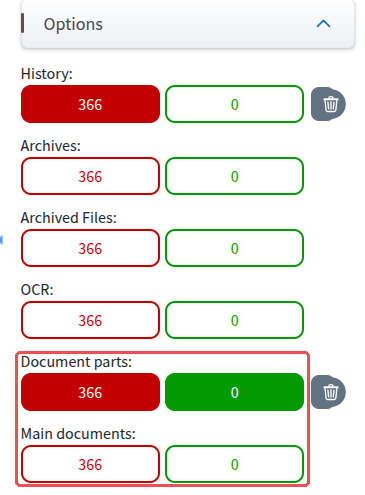
For very long documents, you can have searchit automatically split them into document parts, each covering 10 pages by default, and display a preview of them as above. To do this, click “Options” in the filter list on the right in the main search (see image below). Under “Document parts” (formerly “document segments”) you will see two buttons: a red one with the number of documents not split into parts (enabled by default) and one with a green frame that contains the number of document parts for your search query. Clicking the green-framed button takes you to this selection. More on this under Document options.
Clicking one of the search results takes you to the document preview, which is structured similarly to the one above. Using the arrow button  to the right of the tabs, you can also navigate back and forth between the document parts.