
Shortcuts
Work more efficiently with shortcuts in searchit
What are shortcuts in searchit?
With shortcuts you can operate searchit efficiently and quickly without constantly switching between mouse and keyboard. Below is an overview of the most important searchit shortcuts:
| Shortcut | Function | Category |
|---|---|---|
| CTRL + ENTER | opens / closes the preview of the active search result | Navigation |
| Right arrow key | opens the preview of the active search result | Navigation |
| Left arrow key | closes the preview | Navigation |
| CTRL + Space | adds the active search result to the selection | Navigation |
| Down arrow key | navigates to the next search result | Navigation |
| Up arrow key | navigates to the previous search result | Navigation |
| CTRL + "." | shows the search field suggestions | Interactive search bar |
The arrow keys work in the list view, not in the grid view. The active search result is the one you have navigated to with the arrow keys; without an active search result, CTRL + ENTER, CTRL + Space and the right and left arrow keys have no effect.
Shortcuts for quickly selecting results (Active Mode)
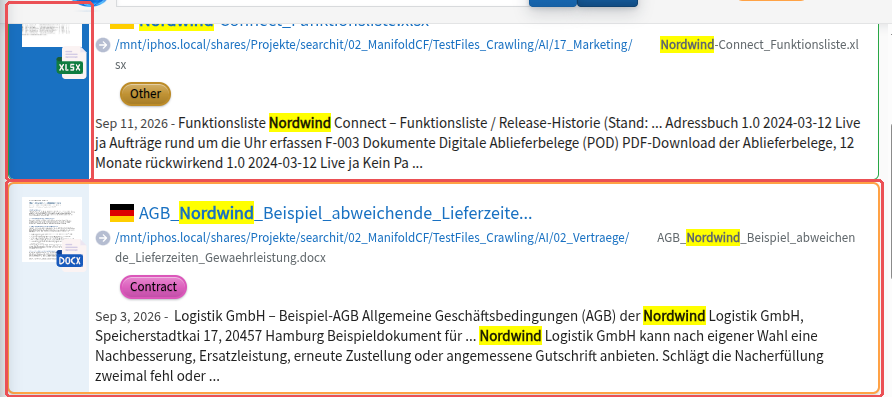
With the following keys and key combinations you can easily navigate through the search results while selecting and activating the results you want (Active Mode), e.g. for tag handling:
- Up/down arrow key: switches between search results (in the list view).
- Ctrl + Space: adds the active result to the selection.
The most recently active result is highlighted with a thin orange frame.
The active selection is shaded blue at the front of the result box.
Note on the color design
By default, the highlight colors in Active Mode are orange (currently active) and blue (selected). They can be adapted to your corporate design on request and may therefore differ in your organization from the default shown here.
Shortcuts for the document preview
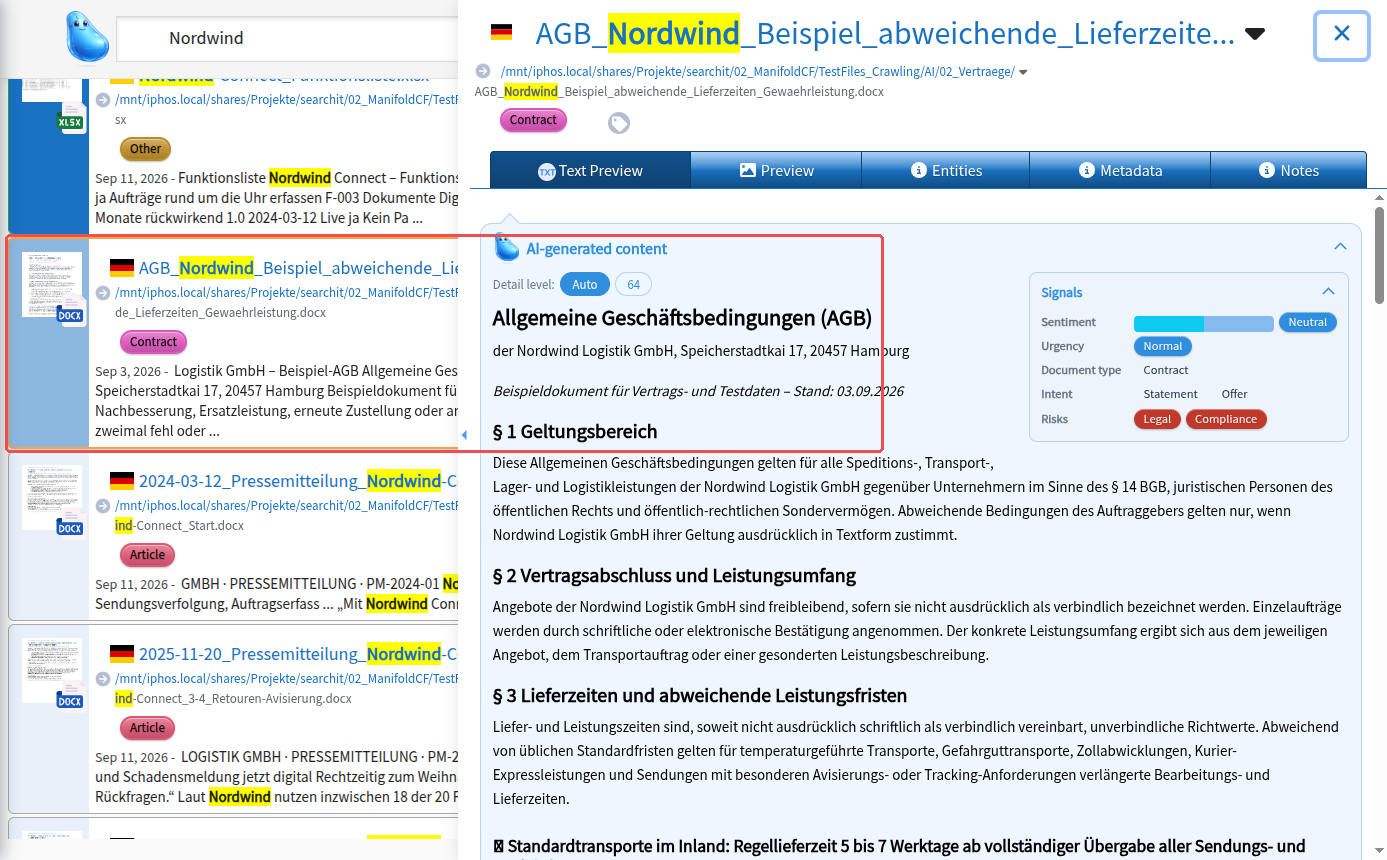
When a search result is active, simply press the right arrow key to open the document preview. With the up or down arrow keys you now navigate through your search result list while keeping the preview in view. When you no longer need this view, simply close it by pressing the left arrow key.
Bulk operations in Active Mode
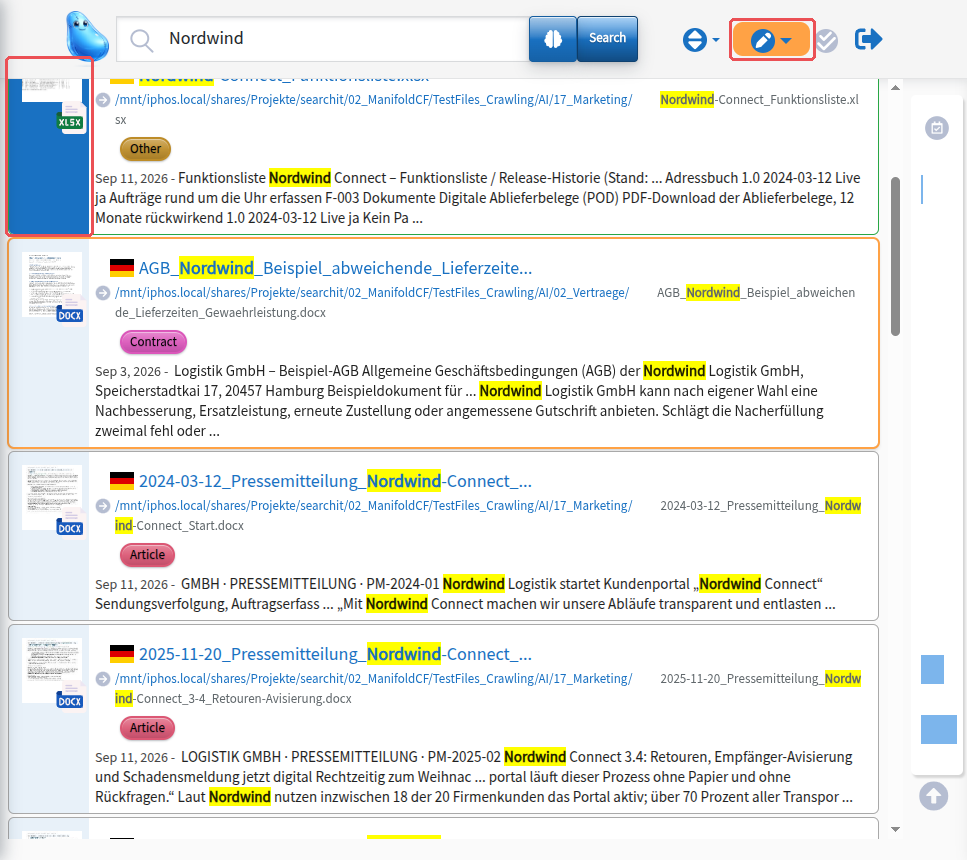
As soon as several items are actively selected, you can trigger a bulk edit (e.g. adding or removing tags). You can find detailed information on the bulk operations here.
Individually configurable shortcuts
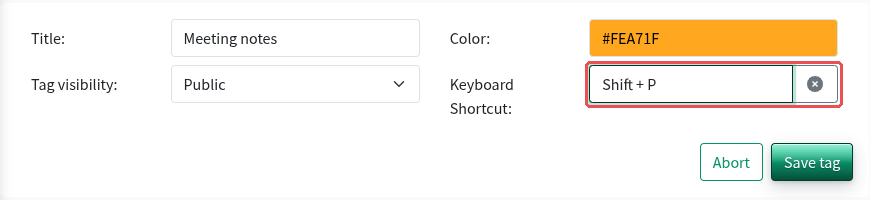
searchit lets you configure the shortcuts you need individually. Currently, this function is available for quickly assigning tags as part of the classification & tag handling plugin. Each user can assign the key combinations for these quick tagging shortcuts individually. On macOS, the quick tagging shortcuts are currently not available. You can find more information on tagging and the shortcuts for quick tagging on our plugin page.
Last updated on 23.09.2026