Storage management plugin
Some screenshots still show the German user interface.
Extend the functionality of searchit with plugins to handle specialized tasks.
The storage management plugin lets you find, manage and visualize duplicates in the connected sources.
Duplicate handling / managing duplicates
This is how identifying/finding duplicates with searchit works: a unique checksum is calculated for each element during indexing. Based on the checksums, files with the same content can be recognized regardless of their name and origin (cross-source detection).
We distinguish between the “original”, i.e. the file with the oldest creation date, and its later copies, the “duplicates”.
The options filter now lets you filter as follows:
- Originals + duplicates: All files that have duplicates are shown, including originals and duplicates.
- Originals: Only the originals are shown, i.e. the oldest version of each set of duplicates.
- Hide duplicates: Only originals and files without duplicates are shown.
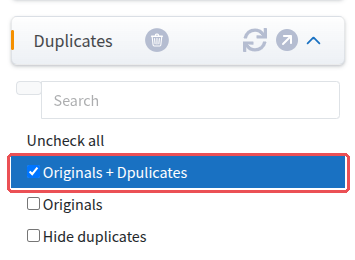
Managing duplicates:
In addition, the following functions are available for handling duplicates:
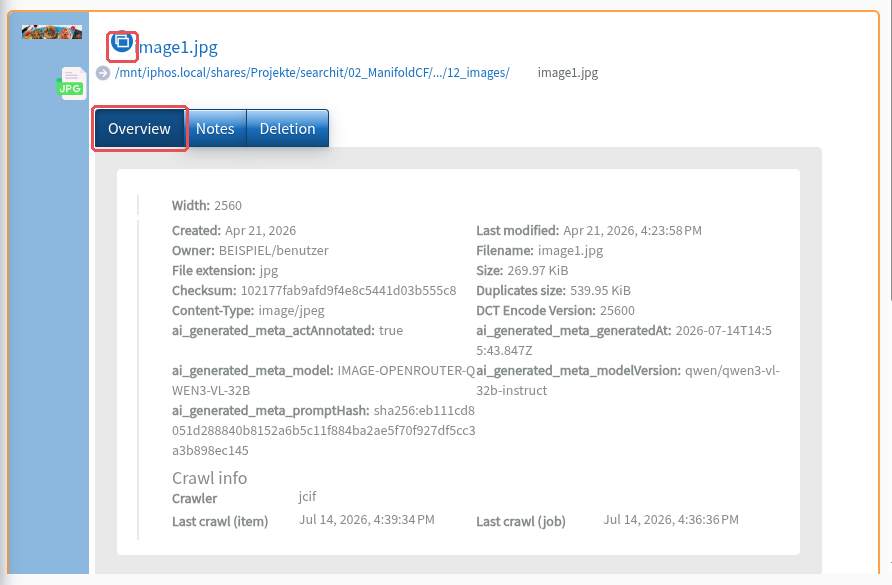
- The lookup search icon indicates duplicates; the mouse-over tooltip shows the number of duplicates.
- The “Overview” tab shows the combined size of all duplicates. The calculated checksum is also displayed
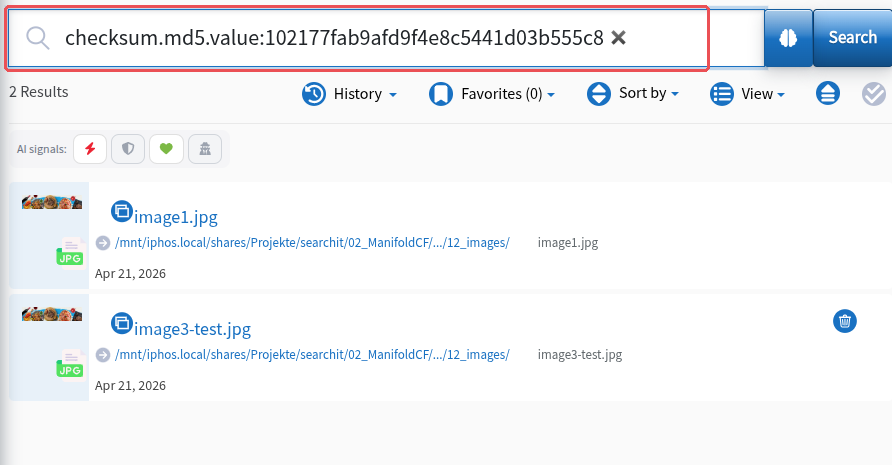
- Clicking the lookup search icon opens all duplicates of this file via a checksum search.
In addition, two new sort options are now available:
- Duplicate count: sorts by the number of duplicates per checksum
- Duplicates size: sorts by the file size of all duplicates of a checksum
Storage visualization
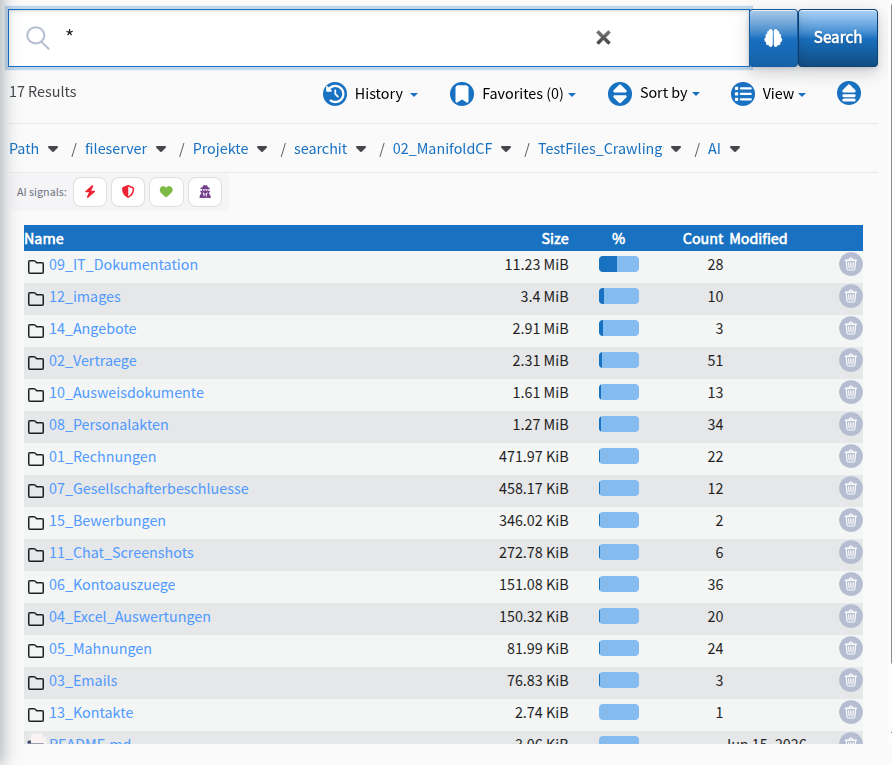
To determine how much storage space which directories take up, the sizes of the directories are calculated recursively and shown as absolute numbers in the Explorer view.
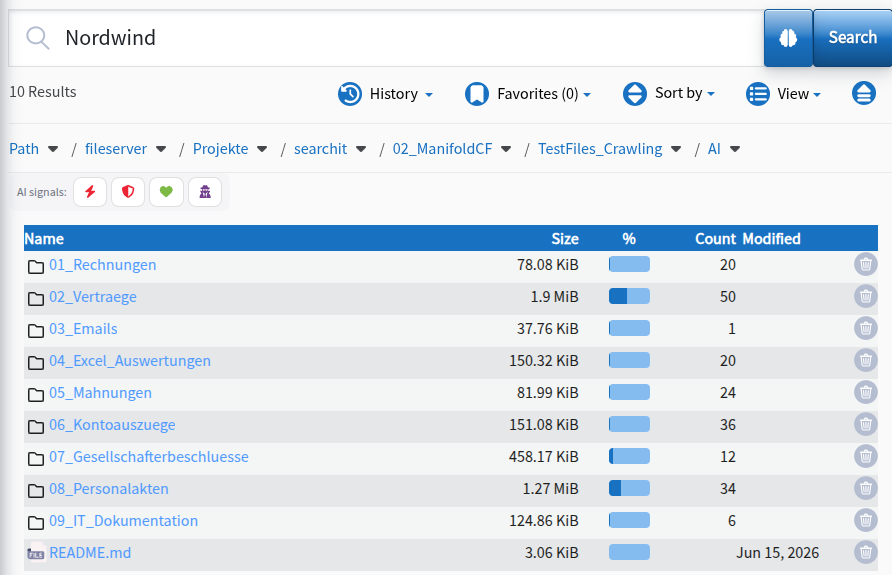
In addition, sorting by size is available among the sort options:
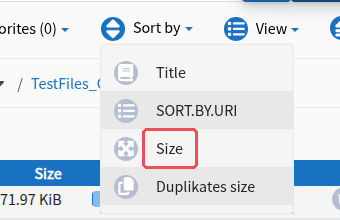
Below you can see the view sorted in this way:
Controlled deletion
searchit enables controlled deletion of files, optionally according to the four-eyes principle (approval only by a person other than the requester). For this purpose, two new roles are defined in the system that can be assigned to users:
- Create deletion requests: Allows creating deletion requests for individual files or entire search queries
- Confirm deletion: Logged approval or rejection of deletion requests
Deletion requests can be created for individual files or for entire search queries:

Creating a deletion request
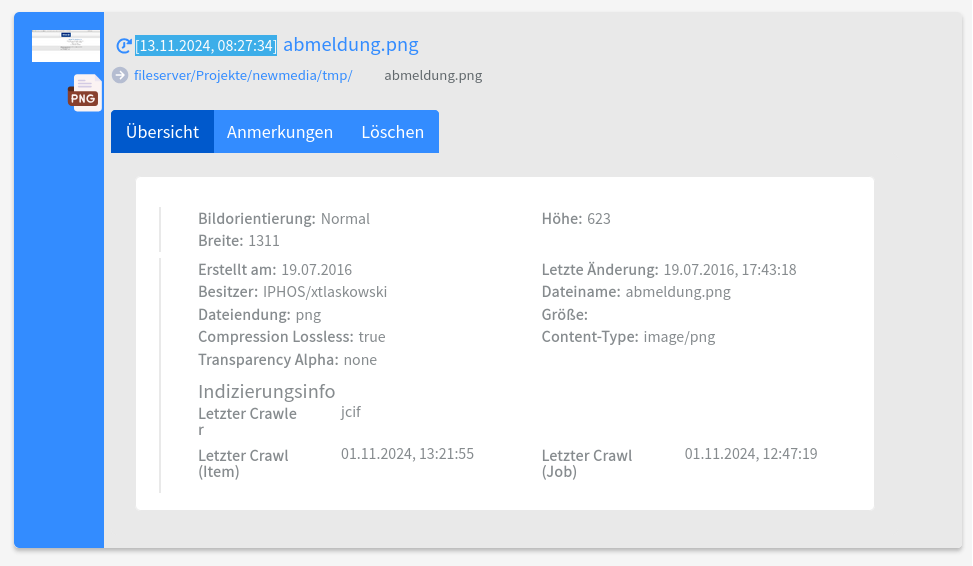
A deletion request can easily be made via the “Delete” tab in the file overview:
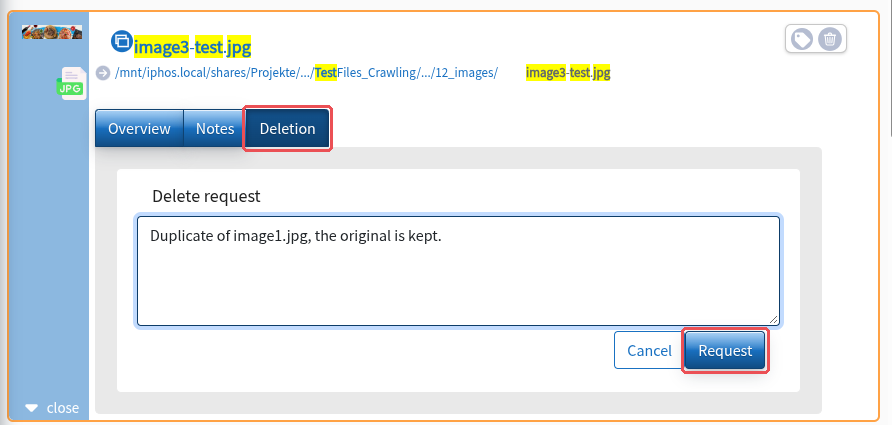
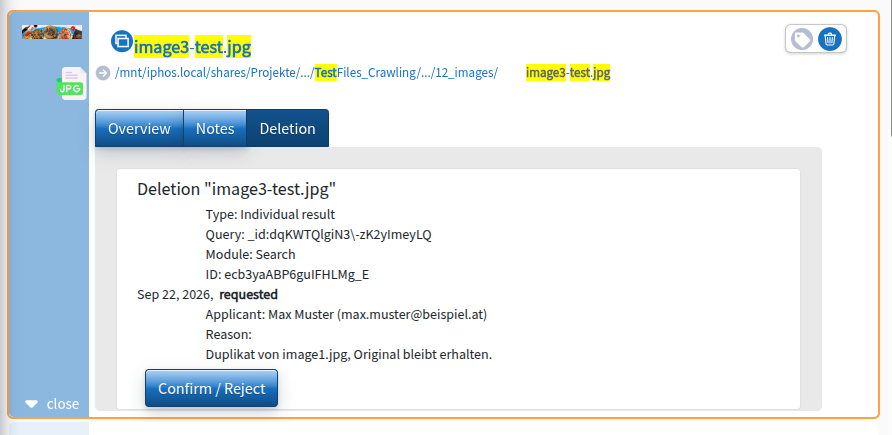
The details of the completed deletion request can also be viewed after sending in the “Delete” tab in the file overview:
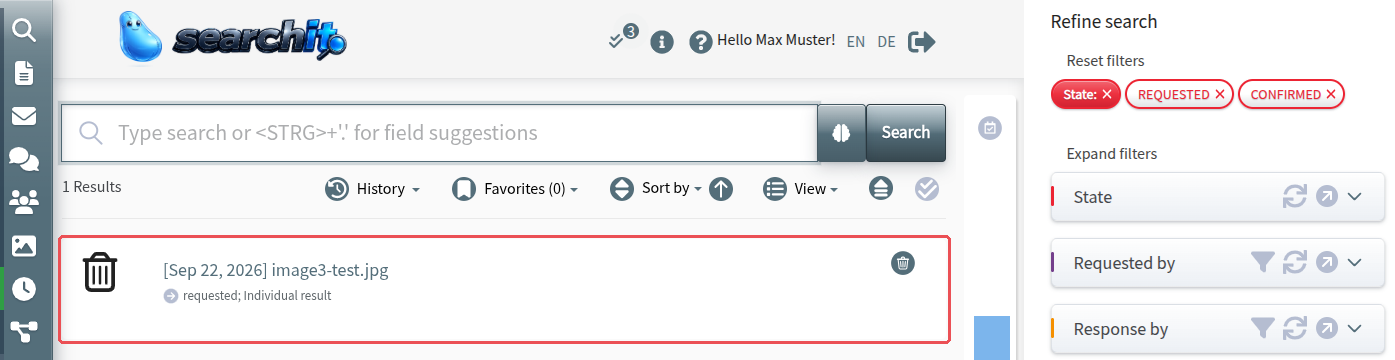
All deletion requests can be viewed via the “Change Requests” module in the main bar on the left:
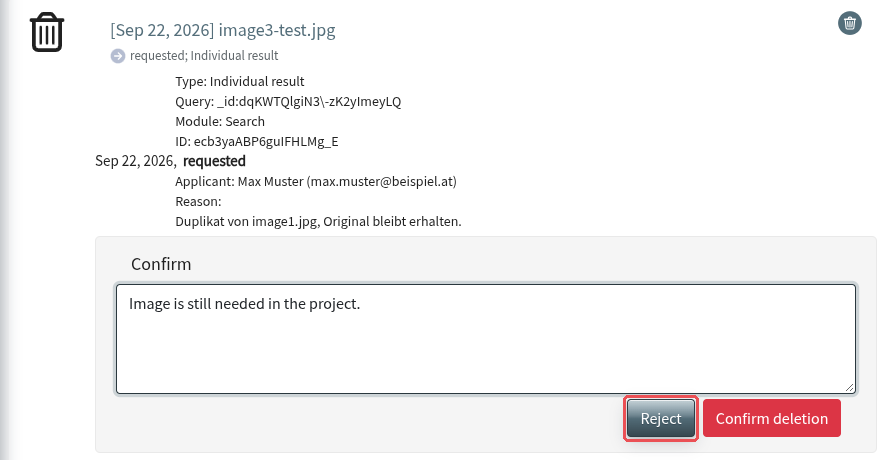
Approving a deletion
When the deletion is approved, the file is then removed from the file system.
The entire process has been logged:
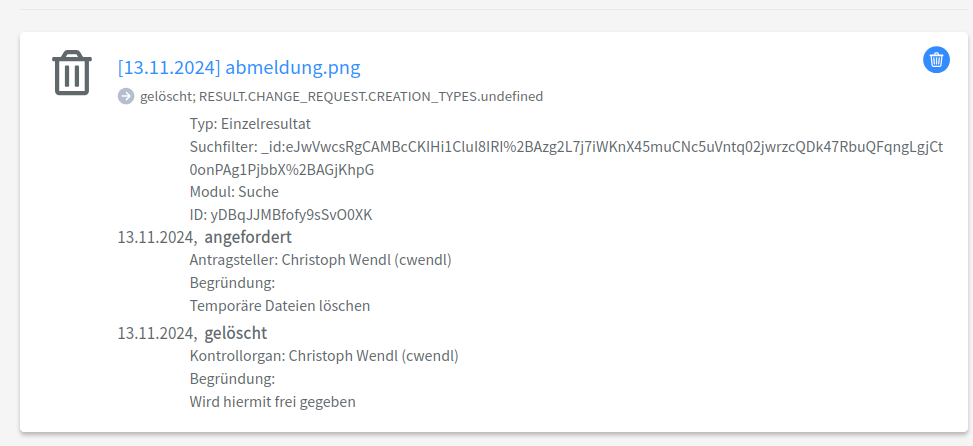
Depending on the settings, after deletion the file can still be found via an archive search in a special history index, but it no longer exists in the file system:
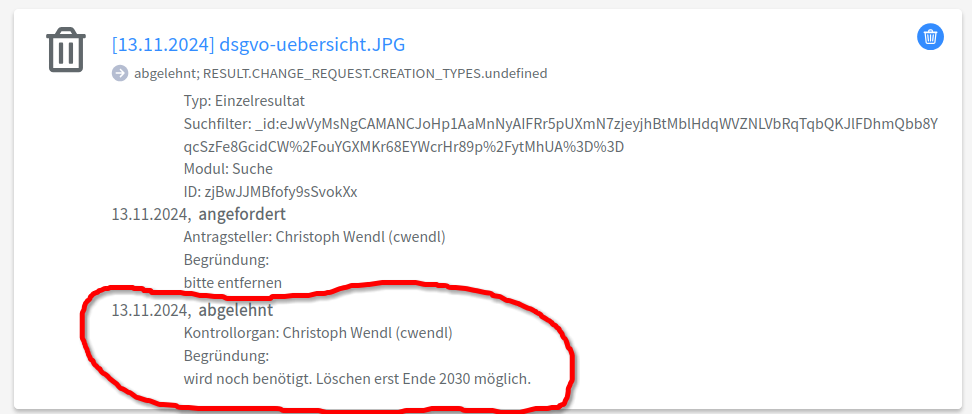
Rejecting deletions
Deletions can also be rejected by stating a reason. This reason is then also logged in the system: