
Click-Service
Some screenshots still show the German user interface.
The Click-Service is an add-on program for your computer that lets you open files and folders you have found directly from the searchit search.
What is the Click-Service?
searchit runs in the web browser. For security reasons, browsers are not allowed to access the files on your computer or on network drives, so a search result could be displayed but not opened.
The Click-Service closes exactly this gap: it runs in the background on your computer and receives the clicks from the search. You click a result in searchit, and the file opens in the program intended for it on your computer. This lets you work faster and more efficiently.
The Click-Service functions
Specifically, the Click-Service includes the following functions:
- Opening files in the associated program
- Copying file paths to the clipboard
- Opening folders in Explorer, with the found file already selected
- Opening e-mails in Outlook via the optional Outlook plugin (classic Outlook for Windows; with the new Outlook in webmail)
- Combining several files into a ZIP archive
- Quick search via the icon in the notification area of the taskbar (on macOS in the menu bar)
- Operation with several searchit instances: you choose the instance you want in the quick search
- Redacting documents (PDF, Word, Excel, PowerPoint, text files) via the searchit AI Agent, see below
- searchit AI Agent: an AI assistant on your own computer, see searchit AI Agent. It is switched off by default and is not set up during installation.
- Messages from the AI Agent: when the agent has completed a recurring task, it notifies you via the icon in the notification area; a click takes you to the session that triggered it
- Connection to Signal and WhatsApp: write to the AI Agent from your own phone (Signal on Linux only)
The Click-Service is available for Windows (workstation and terminal server), Linux and macOS. Installation is described on the page Click-Service Installation.
There is a separate setup for terminal servers. It is not available for download and is provided on request. Please contact your searchit contact person.
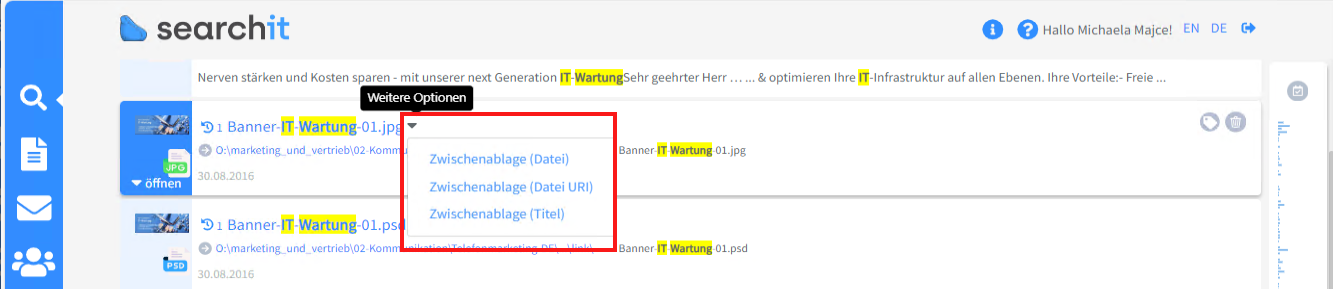
Example of easily copying the file, the address of the file as a link (menu item “Datei URI”) or the file title to the clipboard by clicking the small triangle to the right of the file name:
The searchit Quick Search in the system tray
After installation, you will find the searchit icon in the notification area of your taskbar (bottom right, possibly behind the arrow for hidden icons). On macOS it is in the menu bar.
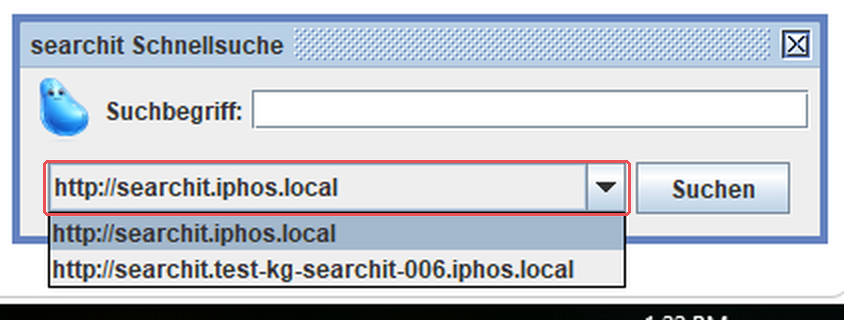
Clicking the icon opens the quick search: you enter a search term and go directly to the result list in searchit, without first opening the browser and entering the address.
If you entered several searchit instances during installation, choose the one you want from the selection field of the quick search:
Right-clicking opens the menu with all other functions.
Redacting documents
The Click-Service can make terms in a document illegible, for example names or file numbers before you pass it on. This works with PDF files, with Word, Excel and PowerPoint files in the current format (.docx, .xlsx, .pptx) and with text files.
You request the redaction via the searchit AI Agent, for example: “Redact all names in this document and save it under a new name.” Without a configured agent, the function is therefore not available.
The text is removed from the file, not just covered in black. A search in the result no longer finds the term, and it cannot be restored by selecting and copying either.
Two things you can rely on:
- The result always tells you what could not be read. A scanned document without a text layer is reported as such; it never looks as if there was nothing to redact.
- An existing file is overwritten only after explicit confirmation.
Redaction is not possible for:
- scanned documents without an underlying text layer (pure image files in the PDF)
- encrypted PDF files
- Word, Excel and PowerPoint files in the old format (
.doc,.xls,.ppt)
ℹ️ On terminal servers, redaction is only available if the searchit AI Agent is set up there (see below).
Security
The Click-Service accepts requests only from your own computer. It cannot be reached from the network, not even within your company network.
Therefore no firewall exceptions are required. You can cancel a firewall prompt during the first installation.
Which files you are allowed to open is still determined by the permissions of your Windows, Linux or macOS account. The Click-Service does not give you any additional rights.
Operation on terminal servers
On a terminal server, many users work on the same computer at the same time. To make sure a click arrives in the right session, the Click-Service works in two parts there: a central service receives the clicks, and a small helper in your logon session executes them.
This helper is set up during installation and starts automatically every time you log on. You do not need to configure anything for it.
⚠️ After an update of the Click-Service, please log off and on again once. As long as you are working in a session from before the update, no helper is running there and clicks are not executed.
If a click is not executed (after the click, the loading spinner appears for a few seconds and then nothing happens), no helper is running in your session. In this case, log off and on again. If the problem persists, contact your system administrator.
Whether the searchit AI Agent with its messages, redaction and the connection to WhatsApp is also available on the terminal server is decided by your administrator during installation (option Workstation instance per session). Signal is not available on terminal servers.
Notes on macOS
On macOS, the Click-Service runs in your user session. Opening files and folders works as usual; the searchit icon with the quick search is in the menu bar.
You can set up the searchit AI Agent from macOS 13 (Ventura) onwards on Macs with Apple silicon. Signal is not available on macOS.
Read here how to install the Click-Service on your computer.
Last updated on 21.09.2026