
GDPR plugin
Extend the functionality of searchit with plugins to handle specialized tasks.
General Data Protection Regulation (GDPR) plugin
With the searchit General Data Protection Regulation (GDPR) plugin you extend searchit with useful additional functions developed specifically for GDPR applications. These include, for example, data management and the creation of legally compliant data subject access responses.

Specifically, the GDPR plugin includes the following functions:
- Data subject access requests: Creating data subject access requests with details about the requester; you record the purpose of processing for each result
- Source descriptions: Describing sources for data subject access responses
- Marking results: Searching for personal data (results) based on data subject access requests
- Describing results: Describing personal data (results)
- Editing results: Editing and deleting results
- Access response generation: Generating a data subject access response in the form of a report with source and result descriptions
You can have files that were found removed via a deletion request. Deletion requests run through the “Change Requests” module and are therefore also available outside the GDPR plugin:
- Requesting deletions: Role-based handling of deletion requests
- Approving deletions: Role-based approval of deletion requests; optionally following the four-eyes principle (approval only by a person other than the requester)
- Executing deletions: Software-based deletion of approved deletion requests for file systems
- Logging deletions: Logging deletion requests in a history
Creating and saving a GDPR request
In the main bar on the left, click the GDPR plugin icon to go to the GDPR module: 
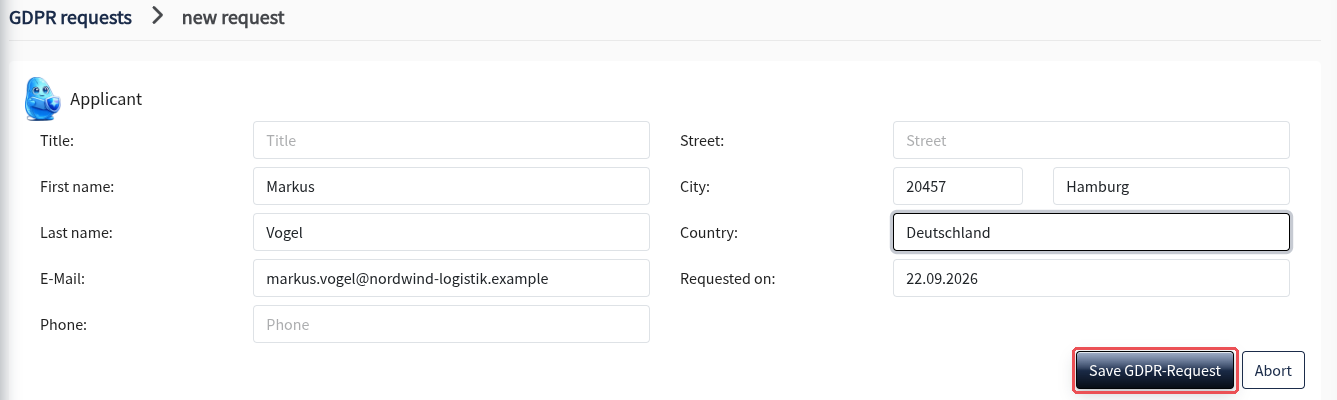
You can then create a new GDPR request at the top left by clicking “new request”, in order to find all records relating to a specific person who wants a data subject access response. Enter the requester’s details and the “Requested on” date and click “Save GDPR-Request” to create a request. searchit automatically sets the deadline to one month from “Requested on”; it cannot be entered manually.
Documenting and editing results
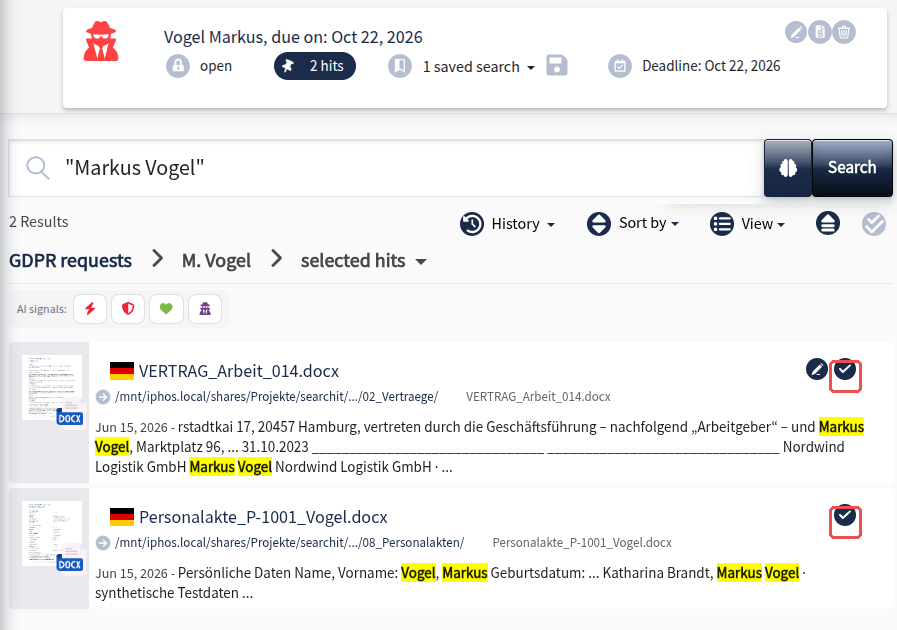
After you have clicked “Save GDPR-Request” to create a request and searched for terms in the search field, the corresponding documents are found, and you can add relevant results to the request by clicking the check mark icon  in the top right corner of the result.
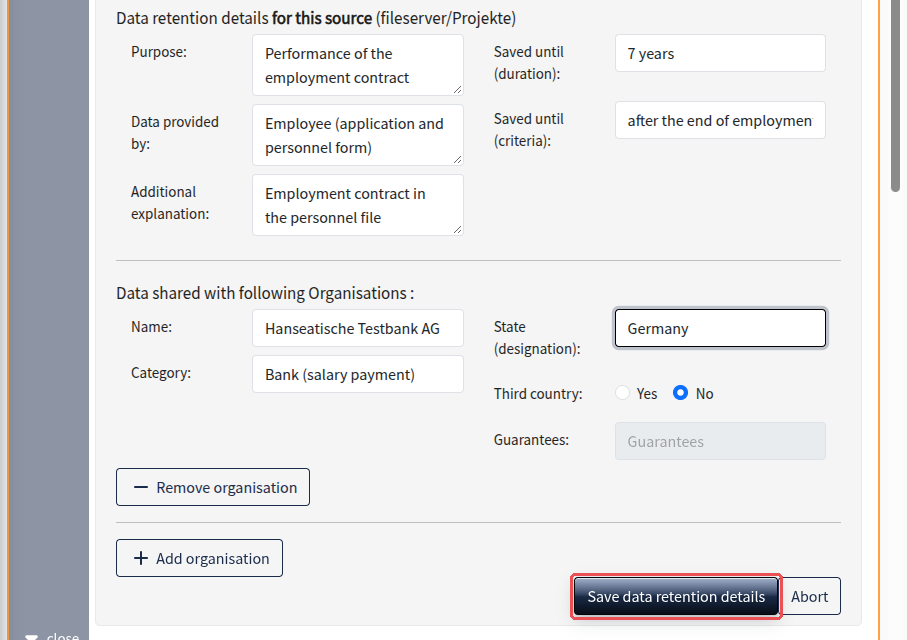
After selecting a result with the check mark icon in the top right corner of the result, you can activate the edit icon  there. It lets you add GDPR-relevant information to the result, such as:
- Purpose: details of the purpose for which you store the data
- Data provided by: from whom your company received the data
- Saved until: period and criteria
- Additional explanation: additional information in a free text field
- Data shared with following Organisations: here you can enter information about organizations to which you have passed on the data
- Add organisation / Remove organisation: Here you can add further organizations to which you have passed on the data. After adding another organization, you can remove it again with a mouse click.
Viewing and editing GDPR requests
In the GDPR module you get an overview of saved requests. You can open, edit and reuse them at any time (e.g. to generate data subject access responses). For each request, the overview gives you the following information:
- Request status: e.g. “open” (clicking this status closes the request)
- Number of results: shows how many records were found for the request
- Saved searches: shows the number of saved searches for the request
- Deadline: shows the deadline for completion (one month from “Requested on”, three months if extended)
Move your mouse pointer over an entry in the request list. Icons for the following actions then appear at the top right of the request: edit request  , create report
  and delete request
  . To edit, click the first icon:

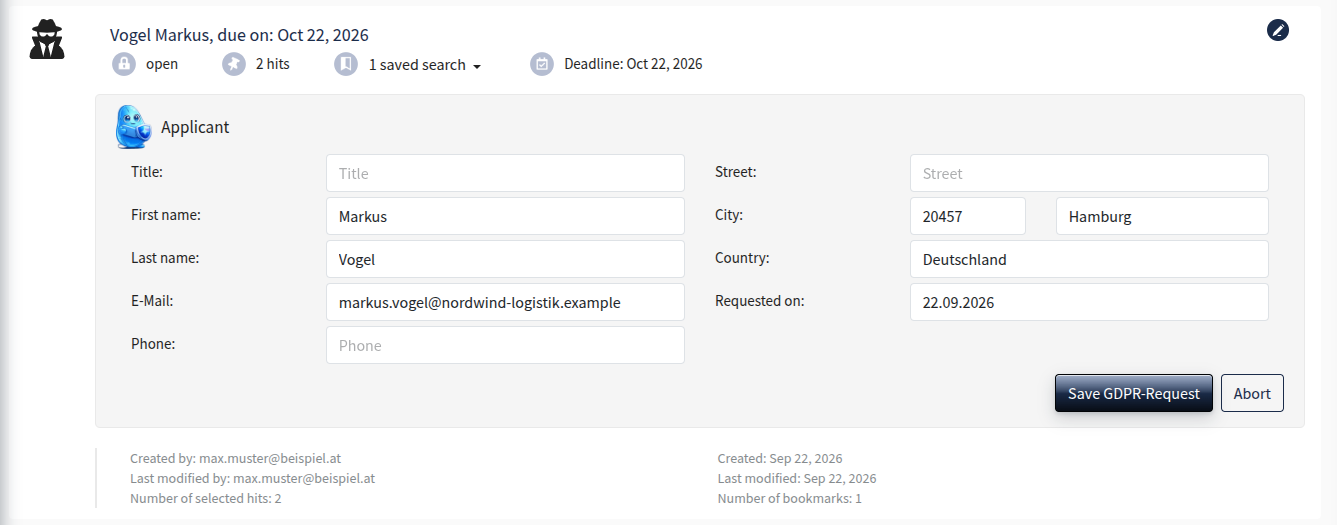
After you click the edit icon, the data panel of the request expands and shows you:
- Creation information: e.g. “Created by …”, “Last modified by”, etc.
In addition, you can edit information about the requester in the request, such as title, first name, last name, etc.
Extending the deadline
If a response cannot be provided within one month, you can extend the deadline once to three months from “Requested on”. To do so, click the deadline in the request list (“Extend Deadline”) and enter:
- Information about the extension sent out on: the date on which you informed the requester about the extension, no later than one month after the original deadline
- Reason: why the deadline is being exceeded
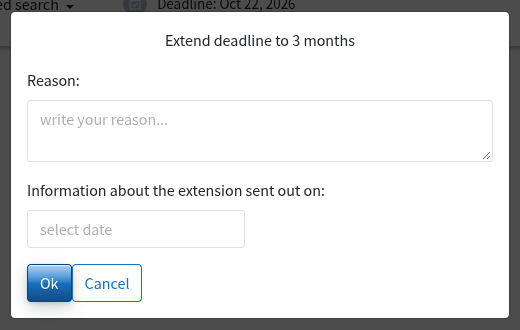
Once an extension has been entered, it can no longer be changed, and neither can the “Requested on” date of this request.
Access response generation
Move your mouse pointer over an entry in the request list. Icons for the following actions then appear at the top right of the request:
- edit request ,
- create report and
- delete request .
To generate a data subject access response, click the middle icon: 
