
Result display
Some screenshots still show the German user interface.
Get to know the different ways of displaying the search results returned by searchit.
 Load video
Results
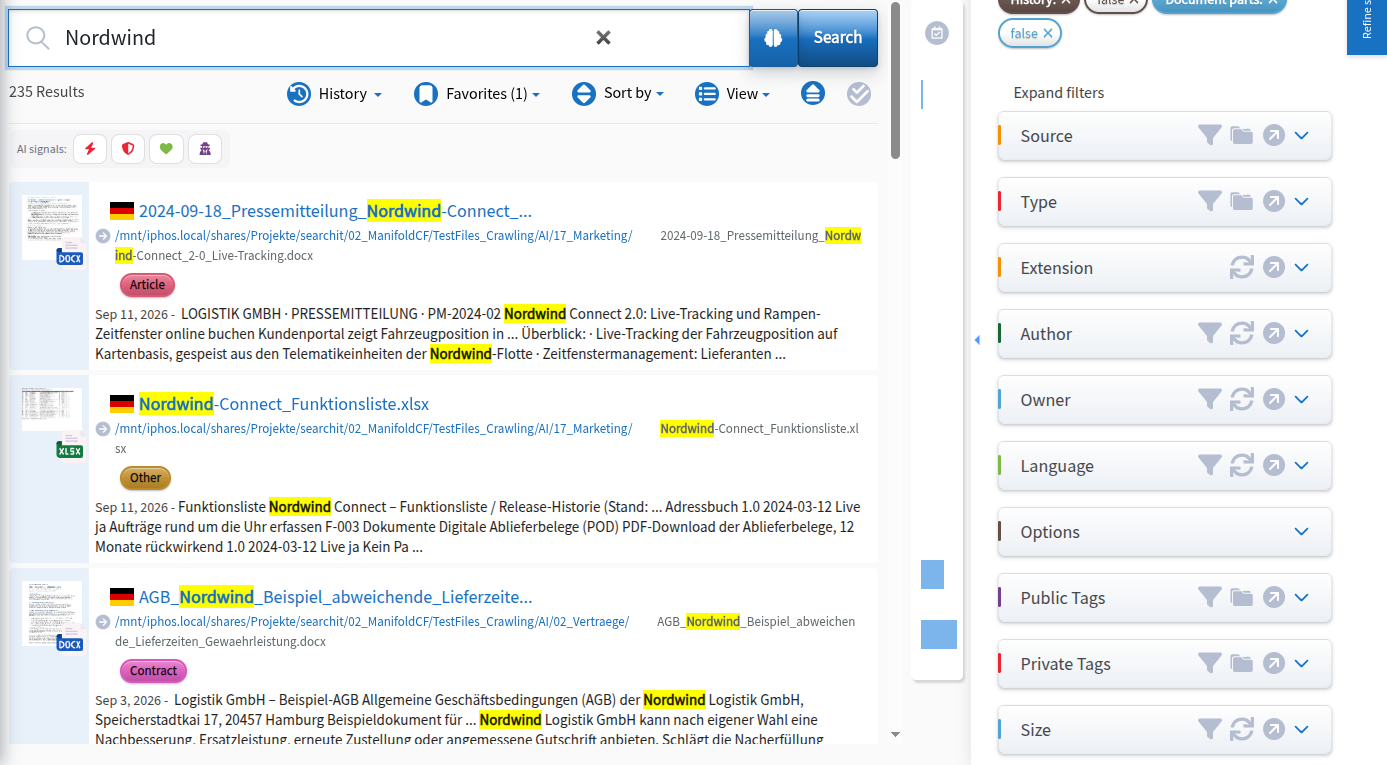
The results are shown below the search bar. The icon on the left indicates the file type. The title line contains the file name; below it you see the path and the date of the last change, followed by the number of pages and the beginning of the document content. Depending on the file type, the information shown in this minimal view may vary.
Did you mean
If no documents are found for your search query, for example because of typos, searchit suggests similar terms that are more promising and lead to more relevant search results.

Clicking the term suggested by searchit copies it into the interactive search bar.
Views
searchit can display the search results in different views. You choose the view in the “View” menu above the result list:
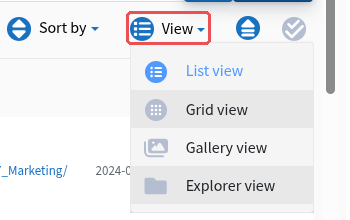
- List view offers plenty of space for a quick preview of the search results
- Grid view shows a larger number of results as tiles
- Gallery view shows the results in a gallery
- Explorer view shows the results in a tree view (see Explorer view)
Which views are offered depends on the module. Export as a CSV or ZIP file is no longer found here but in the Bulk menu.
List form and grid layout
The results are shown below the search bar. The icon on the left indicates the file type.


The flag in front of the title indicates the language of the file, which was detected automatically during indexing. You can filter by it specifically with the language filter.
Type-dependent result display
The display can differ depending on the file type. For documents on a file server (such as PDFs, Word or Excel files, etc.), the path to the file is shown; for e-mails, you can see the sender and recipients.
Click actions on search results
Clicking the title of a file opens it, provided the Click-Service (see Click-Service) is installed.
Clicking the path takes you to the folder that contains the file.
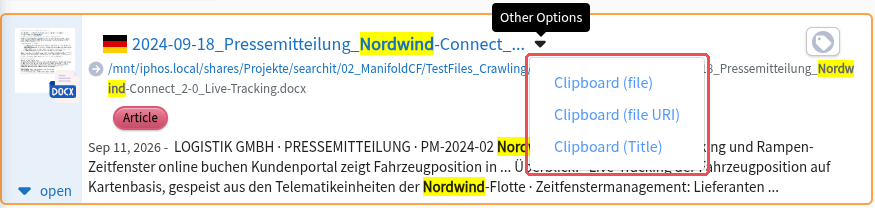
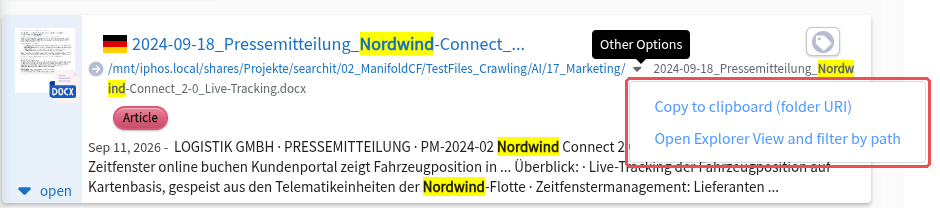
When you move the mouse over a result, a small arrow (“Other Options”) appears next to the title and the path. The arrow at the title opens a menu from which you can copy the file path, the address of the file as a link (file URI) or the title to the clipboard:
The arrow at the path copies the address of the folder as a link (folder URI) to the clipboard or filters the Explorer view by this path:
Detailed result display
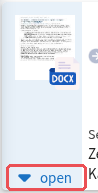
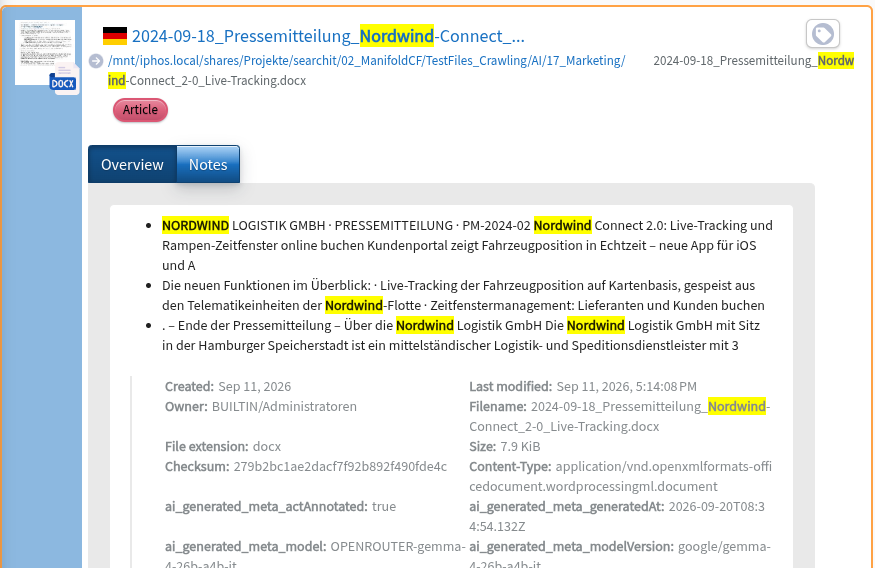
Clicking “open” at the bottom left below the thumbnail expands further information about the current search result, such as a list of the most important hits with the surrounding text passages (highlights) and various metadata. Clicking the “Notes” tab switches to an editor in which you can add notes to the document or record. The note is saved with the document and is visible to all users who are allowed to see the document.
Filtering
The filters are in the column on the right. At the top, the active filters and the available actions are shown; below them are the individual filter options, which you can set and remove again.
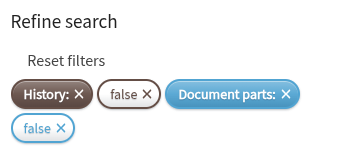
To remove a filter, simply click the x next to the filter tag at the top of the column.
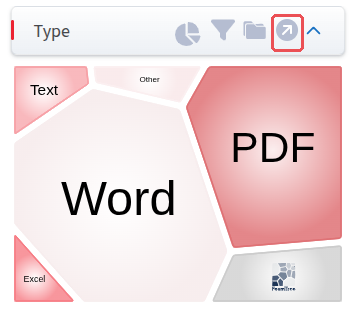
Several display types are available for the filters, which you can choose as you like. Clicking the arrow pointing to the top right (“Maximize”) enlarges the filter column to the whole page; clicking “Minimize” takes you back to the overview.
You can find more information on the filters under Graphical filters
Sorting the search results
The search results can be sorted by several criteria. By default, they are sorted by relevance. Depending on the sorted field, you can also change the order (A-Z, Z-A, oldest first, newest first).
The sorting options available include:
- Relevance
- Filename
- Title
- Modification date
- Creation date
- and various context-dependent filters, depending on the module
Relevance
Sorting the search results by relevance means sorting them by the weighting of the hits.
When the results are sorted by relevance, the order is always descending, as sorting by lowest relevance would not be useful. For this reason, the button for changing the order is hidden when sorting by relevance.
Filename
When sorting by file name, you can sort in ascending or descending order. By default, the results are sorted alphabetically in ascending order.
Title
When sorting by title, you can sort in ascending or descending order. By default, the results are sorted alphabetically in ascending order.
Explorer view
The Explorer view is a tree-like display of the results, similar to Windows Explorer. The results are organized into their folders and can be browsed level by level, as in the file system.
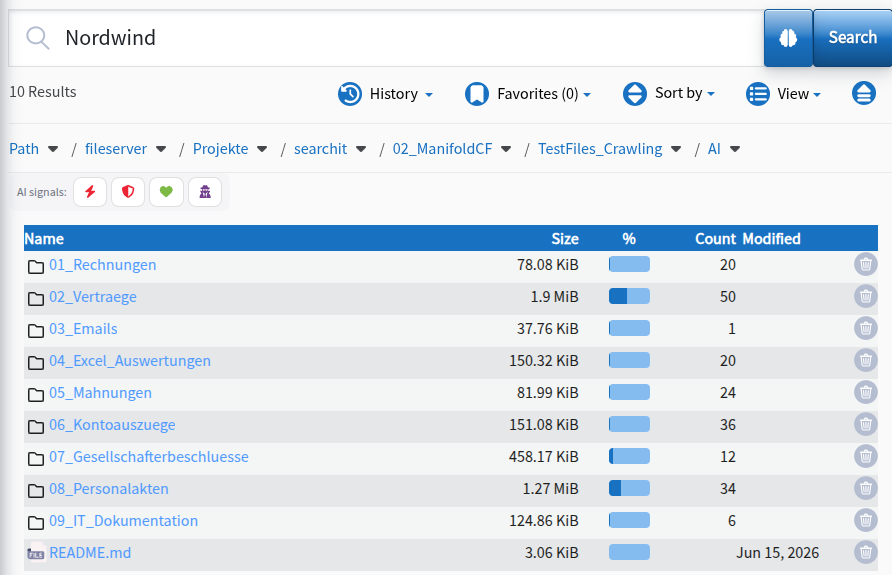
Filtering the tree structure
When you enter search terms or set graphical filters, the entire tree structure is reduced to the folders that actually contain results. Note that not only results from classic network drives but also results from all other sources, such as mailboxes, can be displayed in the tree structure.
Empty folders
Note that empty folders, in which the search engine found no files to index, cannot be shown in the tree structure, even if these folders exist in the original file system.
Path navigation
The path navigation is located above the tree structure. With one click in the path navigation you can switch directly to higher levels of the tree structure:

Click actions on folders
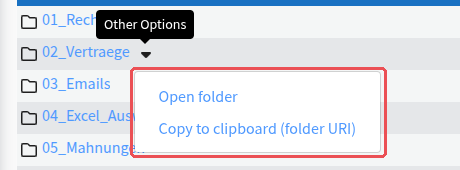
Clicking a folder takes you to the level below it. Clicking the drop-down icon opens a context menu from which you can either open the selected folder directly in your file explorer or copy its path to the clipboard:
Click actions on files
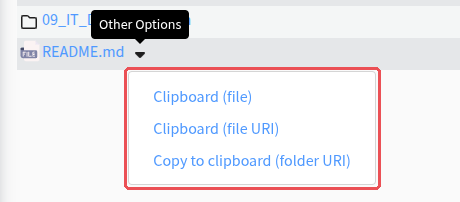
Clicking a file opens it in your default viewer, provided you have installed the Click-Service (see Click-Service). Clicking the drop-down icon opens a context menu from which you can copy the path to the file or the path to the folder above it to the clipboard.
Switching to list view
From the Explorer view, you can switch back to the list, grid or gallery view via the “View” menu.
The current path is saved and automatically applied to the graphical path filter. This means the search results in the list view remain filtered by path:
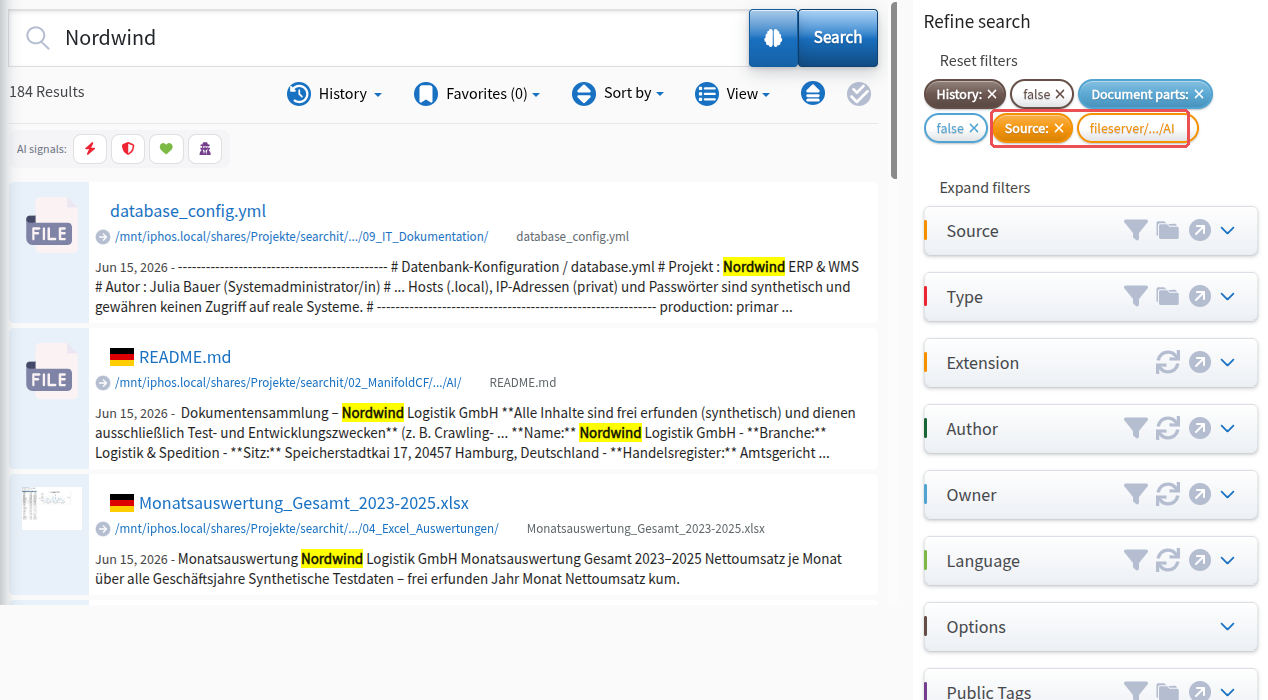
This allows you to switch back and forth between the different views without losing the current path.
Conversely, if you switch from the list, grid or gallery view back to the Explorer view while the path filter is active, the filtered path is applied to the Explorer view and you are taken directly to this folder.
If no search results are shown when you switch from the Explorer view to the list, grid or gallery view, although results were visible in the subfolders of the Explorer view before, check whether you have enabled the option “Search recursively in subfolders” in the graphical path filter (counterpart: “Search only in current folder”):
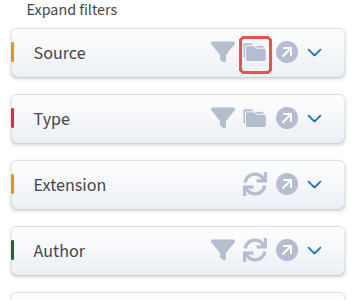
Exporting results
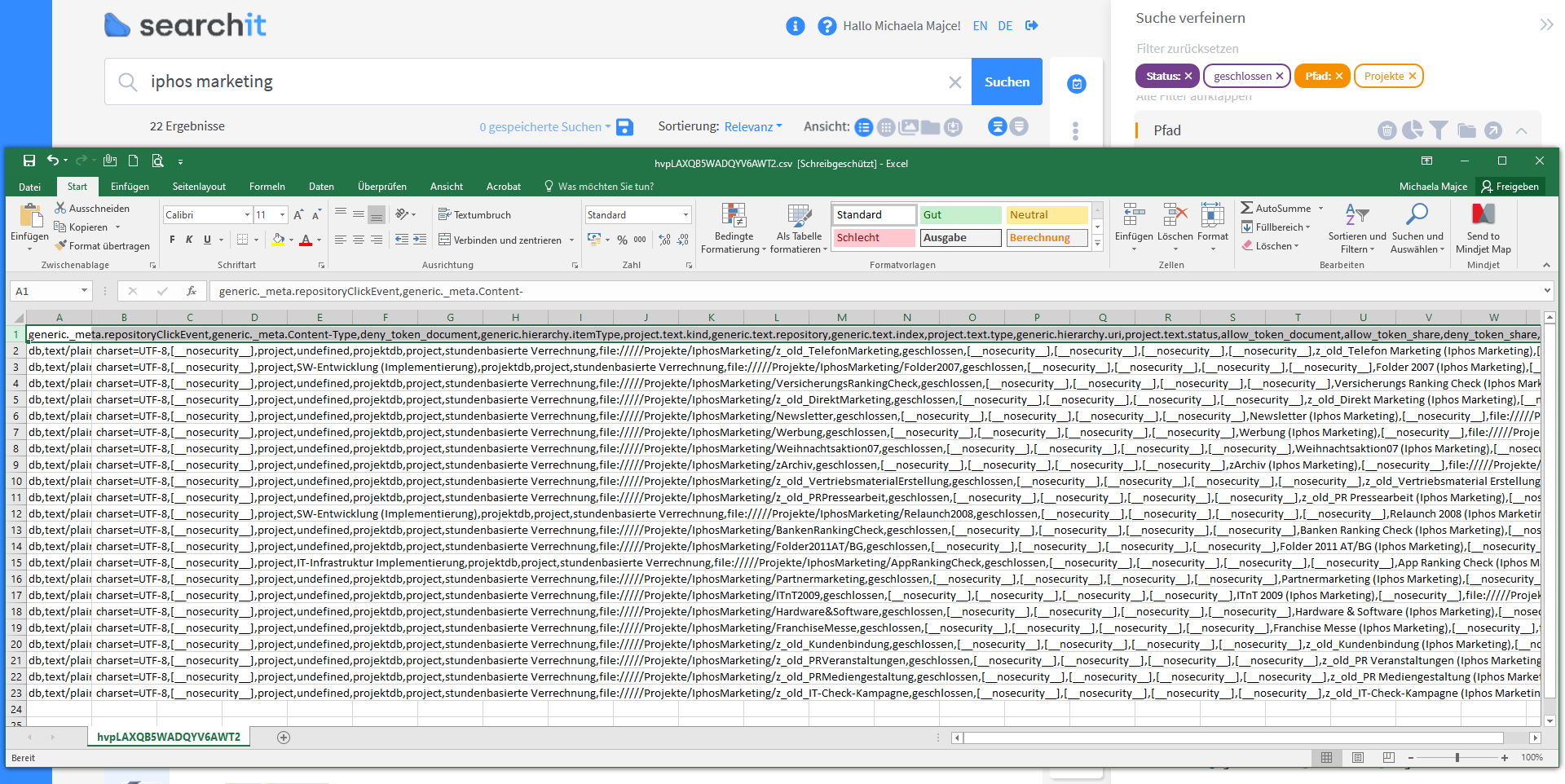
Found data can be exported as a CSV file. This function is particularly suitable for data exports from databases. Select the results you want or all results of the current search and choose “Export as CSV” in the Bulk menu, described step by step under Bulk – Export as CSV. Only the selected results are exported.
The CSV export can easily be opened in Excel or imported into a database.
Lookup searches
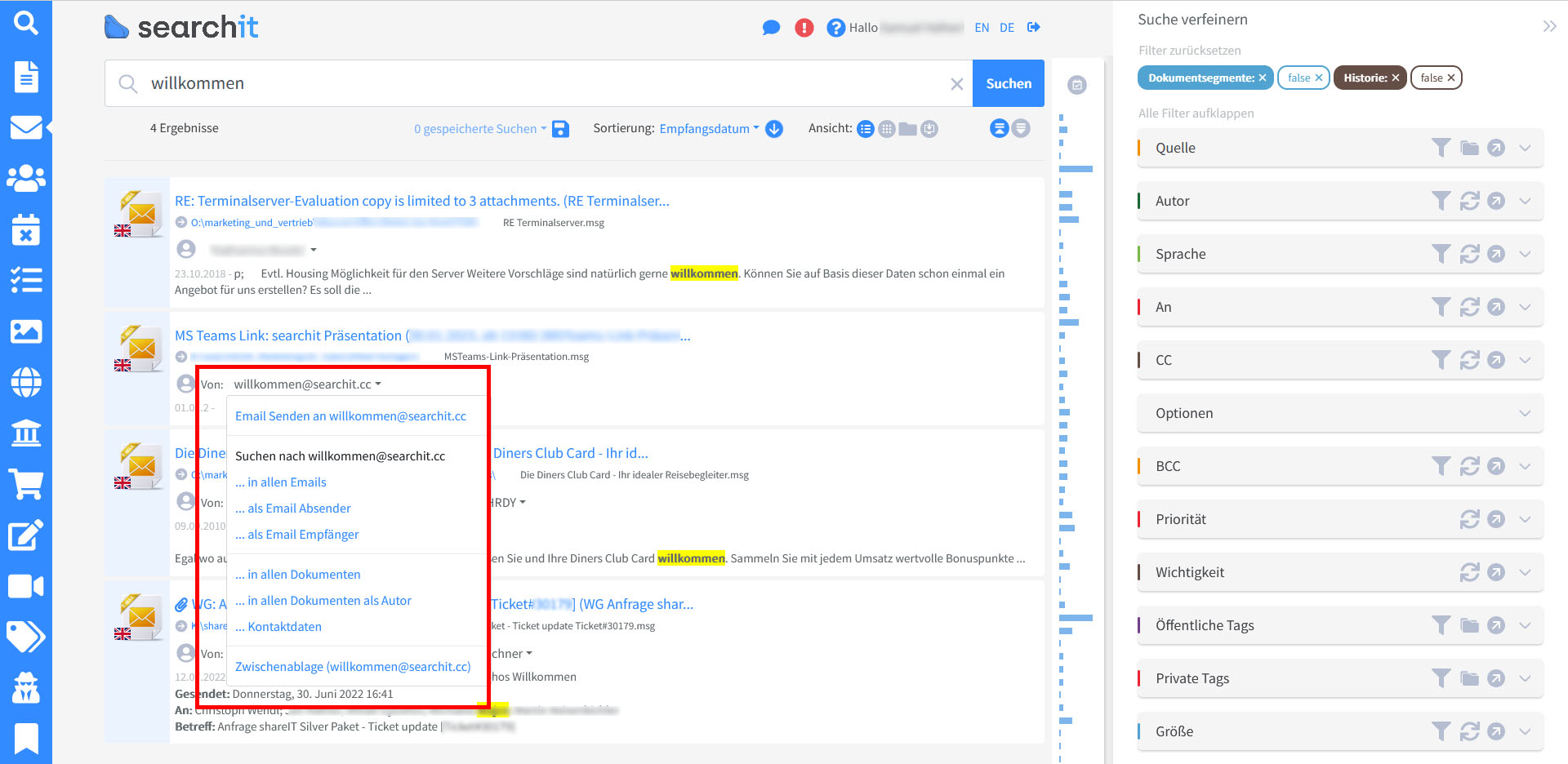
For e-mails, the result filters can easily be reused for new searches. With the lookup search (click the drop-down menu next to recipient or sender) you can, for example, search for all e-mails to or from these people, but also for documents they have contributed to as author or in which they are simply mentioned.
Last updated on 21.09.2026