
Click-Service installation
Some screenshots still show the German user interface.
This page describes how to install the Click-Service, which lets you open search results directly from searchit. What the Click-Service does is explained on the Click-Service page.
Installation on Windows
Requirements
To install it, you need administrative permissions on your computer. If you do not have these rights, contact your system administrator.
Download
If the Click-Service is not yet installed, a red bar appears in searchit above the search field. Use the green Install button to download the setup.

If you accidentally closed the bar via the X in the right-hand corner, you can simply reopen it by clicking the red icon with the exclamation mark. This icon is only red while the Click-Service is not yet installed.

Security prompts from the browser and Windows
The setup does not carry a publisher signature. The browser and Windows therefore report it as unknown — this is expected and does not indicate an error. You have to explicitly allow both the download and the launch:
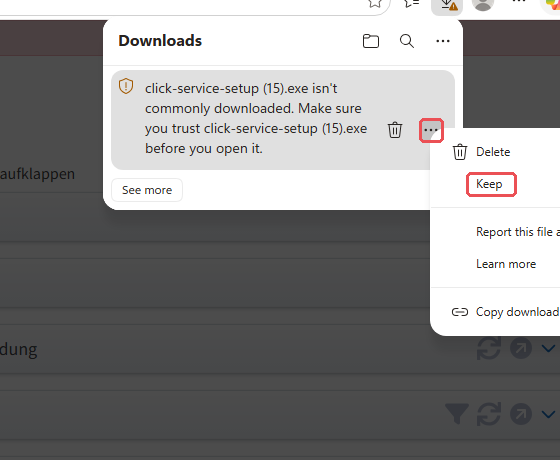
- In the browser, the file is held back at first (“not commonly downloaded”). In the menu of the download entry, choose Keep.
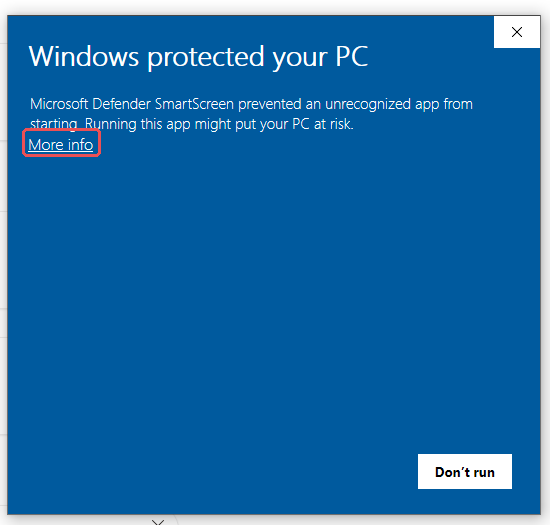
- When you launch it, Windows Defender SmartScreen shows Windows protected your PC. ⚠️ At first only Don't run is visible — click More info.
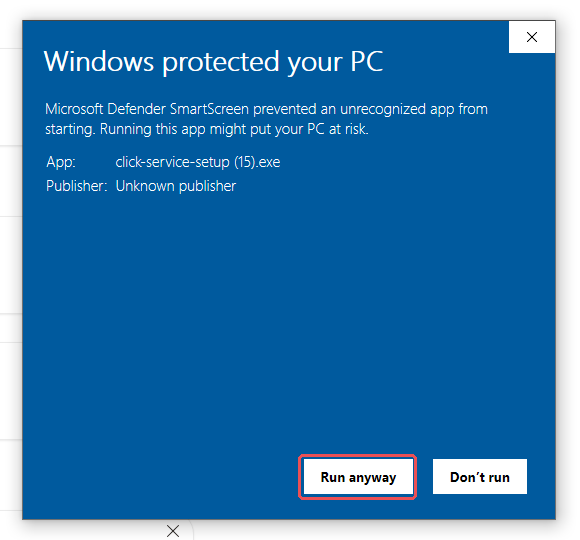
- Only now does the Run anyway button appear.
- Next, User Account Control asks for permission to make changes to your device. Confirm with Yes.
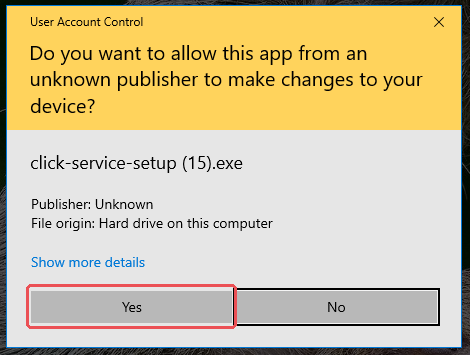
The screenshots show an English version of Windows; the labels match those in the text above.
Installation steps
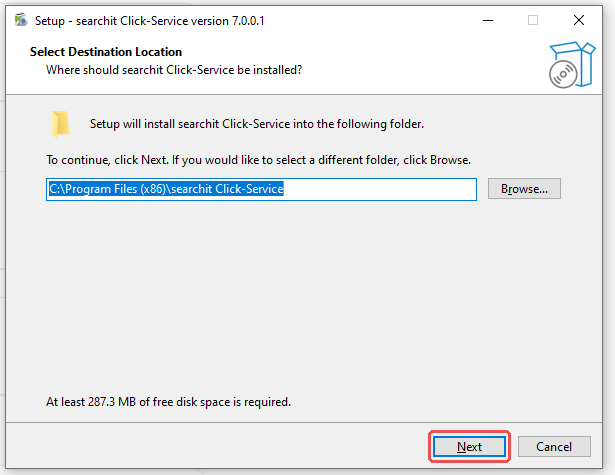
- Select the installation directory — we recommend keeping the default. The setup also shows the required disk space here.
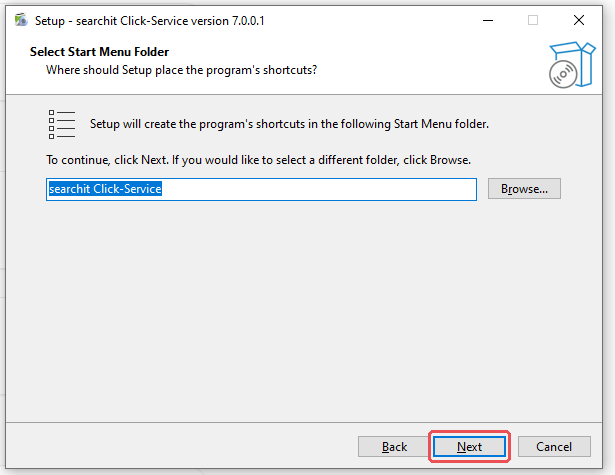
- Specify the shortcut in the Start menu.
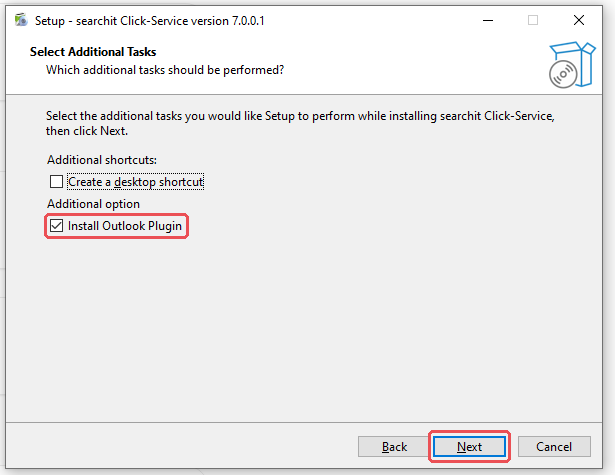
- Additional tasks — here you specify whether a desktop shortcut is created and whether the Outlook plugin is installed as well. Enable the plugin if you want to open emails from searchit in Outlook. It works with classic Outlook for Windows (the desktop version from Microsoft 365 or Office), not with the new Outlook — there, email results open in webmail in the browser.
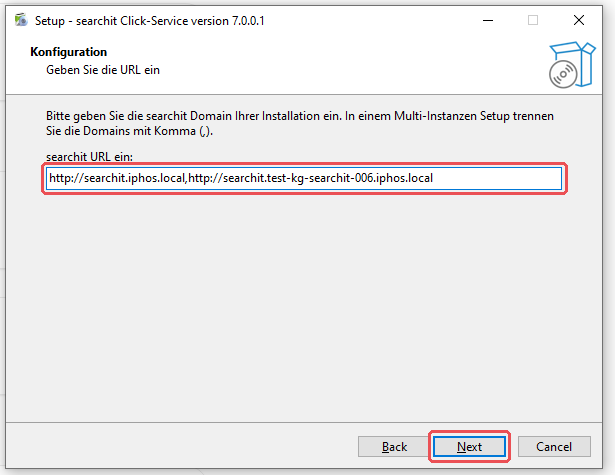
- Enter the searchit address. Separate multiple instances with commas.
- Start the installation with Install.
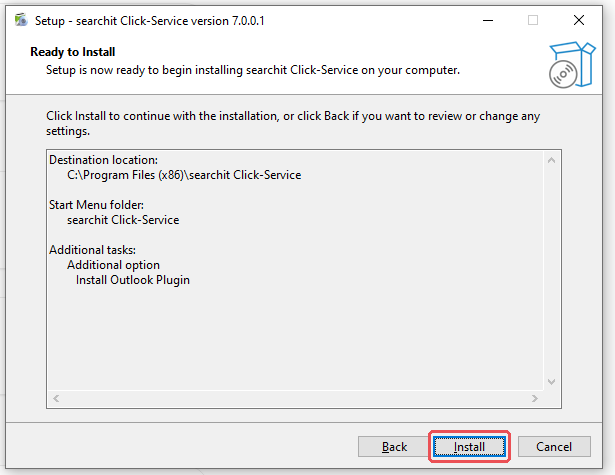
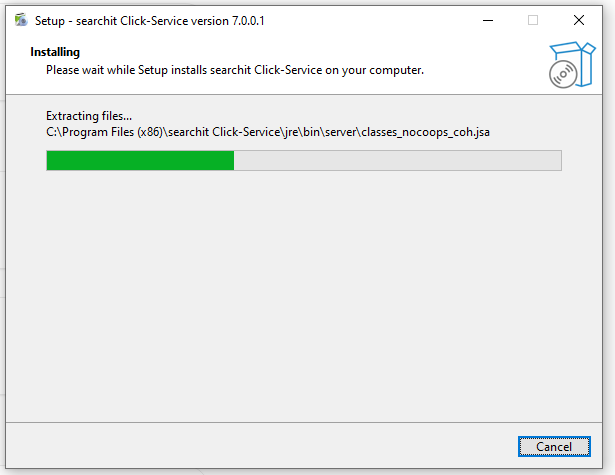
- The installation is carried out.
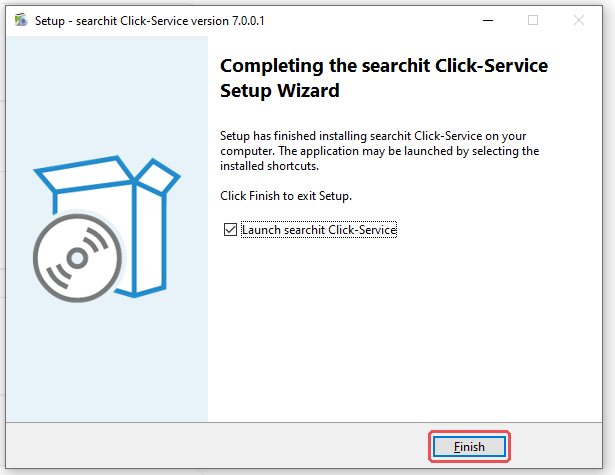
- Click Finish to complete the installation and start the Click-Service.
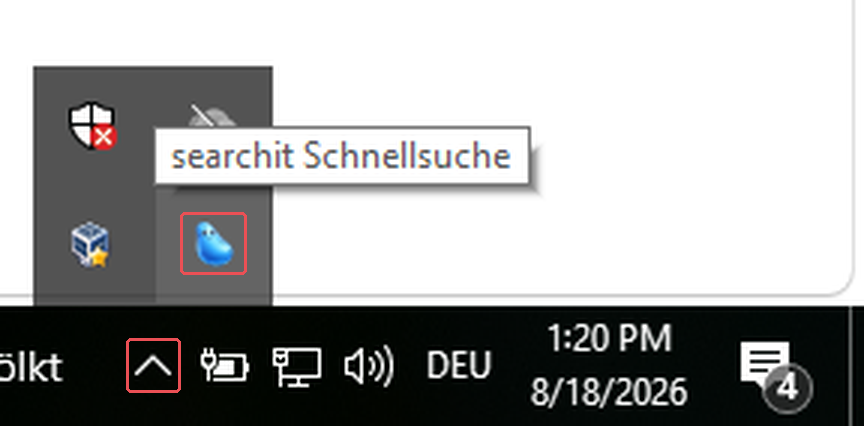
The searchit icon then appears in the notification area of your taskbar. Windows initially hides new icons there — you will find it behind the arrow for hidden icons. Under Taskbar settings → Other system tray icons you can show it permanently. The red bar in searchit disappears by itself.
Firewall
During the first installation, your firewall may show a prompt. You can cancel it — the Click-Service does not need a firewall exception. It only accepts requests from your own computer and cannot be reached from the network.
How to update your Click-Service version
When a newer version is available, searchit shows you a notice. To switch to the new version, first uninstall the existing version and then install the new one.
⚠️ For administrators: update the searchit instance first, then the workstations. The Click-Service downloads the programs of the searchit AI Agent from the searchit instance during setup. If the instance is not yet at the matching version, the agent cannot be set up. All other functions of the Click-Service are not affected.
What is kept when you uninstall
If you have set up the searchit AI Agent, uninstalling also removes its programs. Your own data is kept — chat histories, settings and stored access keys in your user profile. After a reinstallation, they are available again.
If you also want to remove this data, first uninstall the agent via the searchit icon (searchit AI Agent → Verwaltung → searchit AI Agent deinstallieren…, i.e. Management → Uninstall searchit AI Agent…) and select the checkbox auch persönliche Daten … löschen (also delete personal data …). This cannot be undone.
⚠️ If you have linked Signal or WhatsApp to the agent, the channel is switched off when you uninstall. The entry on your phone under Linked devices is not affected — remove it there yourself if you no longer need it.
Unattended installation (silent installation) on Windows
Installation:
For distribution via software management, the setup can be run without a user interface:
click-service-setup.exe /verysilent /url=http://searchit.domain.local,http://searchit2.domain2.local
To exclude the Outlook plugin, add the following:
/MERGETASKS="!install_outlook_plugin"
Uninstallation:
unins000.exe /verysilent
Installation for Linux and Mac
The Click-Service can also be installed on Linux and Mac computers:
Installation
sudo -E ./searchit-click-service.sh -- --url=http://searchit.domain.local,http://searchit2.domain2.localUninstallation
sudo -E ./searchit-click-service.sh -- --removeInstallation directory:
| System | Directory |
|---|---|
| Linux | /opt/searchit-click-service/ |
| macOS | /Library/searchit-click-service/ |
On both systems, the program itself is called click-webservice.jar.
ℹ️ On macOS, the Click-Service runs in your user session; the searchit icon with the quick search is located in the menu bar. You can set up the searchit AI Agent from macOS 13 (Ventura) onwards on Macs with Apple silicon.
--remove leaves the personal data of the searchit AI Agent in place. On macOS, sudo /Library/searchit-click-service/uninstall.sh removes the Click-Service including this data — without asking again.
Installation on terminal servers
The setup for terminal servers is not available for download. The notice bar in searchit only provides the setup for workstations. Please request the setup for terminal servers from your searchit contact person; you will then receive it from us. Plan this step ahead of your maintenance window.
This setup installs two components:
- the central service, which receives the clicks from searchit
- a session helper, which starts automatically every time a user logs on and carries out the clicks in the respective session
The session helper is registered by the setup; no separate configuration is required.
Schedule the installation in a maintenance window – and expect users to have to log on again. The session helper starts when the user logs on. Anyone who is already logged on at the time of the installation or update does not yet have one in their session: clicking a file or folder then shows the loading spinner for a few seconds, and then nothing happens. The remedy is for the respective user to log off and log on again; restarting the service is not enough, because the session helper is not started by the service.
This also applies to the session in which you installed — so only test the function after you have logged off and on again once. Inform your users accordingly.
The helper program TSProcessStarter.exe from earlier versions is no longer needed.
As with the setup for workstations, you choose whether the Outlook plugin is installed as well (default: on). With the plugin, email results open in the respective user's classic Outlook; without it, in webmail in the browser. For the unattended installation, exclude it with /MERGETASKS="!install_outlook_plugin".
searchit AI Agent on the terminal server: With the option Arbeitsplatz-Instanz je Sitzung bereitstellen (provide a workstation instance per session; default: off), every user session gets its own instance of the Click-Service with an icon in the notification area, searchit AI Agent, notifications, redaction and WhatsApp. Plan for around 260 MB of memory per logged-on user, plus the requirements of the searchit AI Agent for every user who sets it up. Without this option, only the click actions are available. Signal is not available on terminal servers.
What is downloaded during setup
The setup contains the complete Click-Service. Two optional components are downloaded from the network only when you set them up, and only after you explicitly confirm:
| Component | Size | Source |
|---|---|---|
| Additional programs of the searchit AI Agent | around 900 MB | Your searchit instance |
| Additional program for the Signal connection (Linux only) | around 115 MB | Internet (GitHub) |
The Signal program is under a different license and is therefore not included. Before the download, a notice appears that you can cancel. The WhatsApp connection does not require an additional download — it is included in the programs of the AI Agent.
ℹ️ As long as you do not set up the searchit AI Agent, nothing of this is downloaded.
System requirements
| Operating system | Windows 10/11, Windows Server (terminal server), Linux, macOS |
|---|---|
| Obtaining the setup | Workstation, Linux and macOS: download from searchit. The setup for terminal servers is available on request. |
| Permissions for installation | administrative |
| Outlook plugin (optional, Windows) | classic Outlook for Windows; with the new Outlook, email results open in webmail |
| Network | access to your searchit instance; no firewall exception required |
| Disk space Click-Service (Windows workstation) | around 290 MB |
| Disk space searchit AI Agent (optional) | around 900 MB in addition, downloaded during setup; on macOS from version 13, only on Macs with Apple silicon |
| Disk space Signal connection (optional, Linux only) | around 115 MB in addition, downloaded during setup |
Read here which functions the Click-Service offers you
Last updated on 23 September 2026