
Interactive search bar
Shortcuts to professional search: simply search more specifically.
 Load video
Search field - structure
At the top of the page is the search field, in which you can search for the term you want. You can narrow down your search further with the available filters, arrange the search results, and use the appropriate syntax in the search field to search for combinations and build more complex queries to refine the results further.

Specifically, the interactive search bar offers the following functions for the text search itself:
- Search terms: entering free text to search for
- Using logical operators: e.g. AND, OR, NOT combinations including groupings
- Wildcards: searching with wildcards such as “maintenance contr*”
- Regular expressions: searching with regular expressions such as \/searchter.*\/
- Phrases: searching for word combinations (e.g. “delivery note searchit”)
- Similarity search: fuzzy search for similar words
- Word proximity: searching for word combinations that occur within a certain distance of each other
- Range search: searching for ranges, e.g. size from 0 to 1500
- Auto-completion: further search suggestions are made while you type
- Field search: searching in specific fields, for example e-mail cc, bcc, with simple syntax:

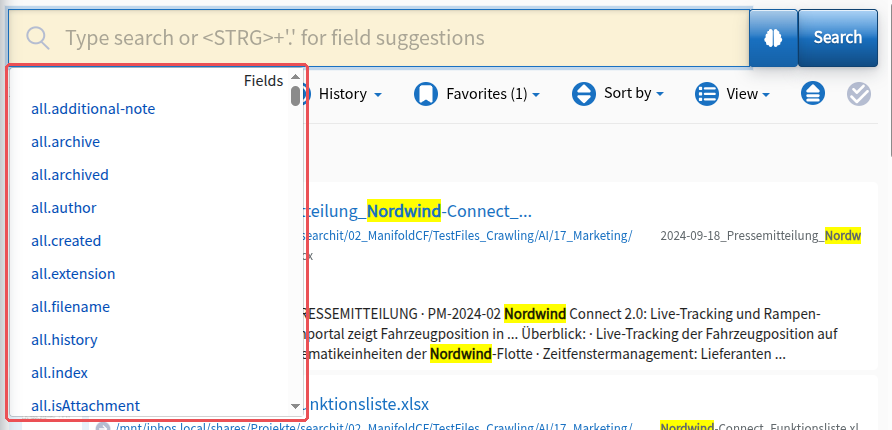
- Field suggestions are interactive suggestions of search fields, grouped by information type. Click in the search field and press “CTRL” and “.” at the same time on your keyboard to get search field suggestions. Clicking a suggestion copies the field suggestion into the search field.
- Among the field suggestions there are general fields in the namespace “all.*”, such as all.filename or all.author.
- There are also type-dependent fields such as email.cc, contact.company or doc.description.
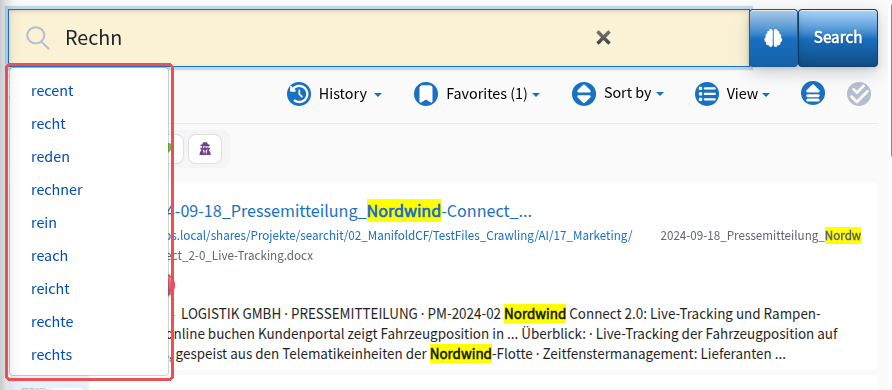
- With auto-completion, various search term suggestions, ranked by relevance and similar spelling, are offered while you type in the interactive search bar. Especially with longer search terms, this not only saves time but also avoids possible typos, which ultimately leads to more relevant search results.
Simple search syntax
Even though you know what text content you are looking for and have already narrowed down your search results with the available filters, too many results are still returned.
With the syntax input, you can narrow down the results of your search quickly and precisely. You can combine terms and phrases, exclude them completely or search for parts of words.
Phrases
If you submit a search that consists of several words, each word is searched for separately, and each must occur in the document. If, however, this combination is to occur exactly in the order entered, the search terms must be put in quotation marks.
"genau dieser Satz soll gefunden werden"Wildcards
So-called wildcards let you search for terms whose exact spelling you are not sure of. Wildcards are also used when searching for a specific part of a word.
- ? – the question mark replaces exactly one letter
- * – the asterisk replaces zero or any number of letters
Please note that not all characters can be used in a search. Some characters are reserved search operators that are used by the search application itself. To use these operators in your own search phrases nevertheless, they must be escaped in the search field, i.e. preceded by a \. The complete list of all operators can be found under Reserved search operators in the table below. You can also see how all operators are used under Using the search operators.
Complex search syntax
Search operators
Certain operators are used by the search for its queries. If you want to search for content that contains these reserved search operators, you must mark them accordingly.
You will find examples in the right-hand column of the table below.
| Logic | Operators | Additional information | Example |
|---|---|---|---|
| Characters | + - = && || > < ! ( ) { } [ ] ^ " ~ * ? : \ | If you want to search for one of these characters, it must be escaped with “\”. The slash / is searched for without “\”; preceded by “\” it starts a regular expression (see “Regular expression”). | searchit\: in the data buffer |
| Keywords | OR, AND, NOT | If you want to search for one of these keywords, it must be escaped with “\”. Only the upper-case form acts as an operator; written in lower case they are ordinary search terms. | searchit is \NOT in the data buffer |
Using the search operators
| Logic | Operators | Additional information | Example |
|---|---|---|---|
| And | AND, && | If several search terms are entered without operators, the query is an AND query. | searchit && Appliance |
| Or | OR, | | | - | searchit | | Appliance |
| Negation | NOT, !, − | Placed in front of a search term, the operators negate it. | !databuffer searchit |
| Groupings | ( ) | The OR, AND; NOT operators can be combined with parentheses. Other subqueries can also be created. | (searchit AND Firefox) OR Edge |
| Phrases | “ “ | To search for a phrase with the exact wording, put it in quotation marks. | “searchit is a top search engine“ |
| Wildcard question mark | ? | The question mark returns all search results in which any single character stands in place of the question mark. | ?earchit |
| Wildcard asterisk | * | The asterisk replaces zero or any number of letters in a search query. | *rchit |
| Range search | [Value1 TO Value2] [Value1 TO *] | Searches from a minimum to a maximum value including the boundary values, or up to infinity (*). | [12 TO 45] |
| Weighting | ^[Number] | The circumflex lets you give a term more weight. Results with a higher weighting are shown further up in the result list. | searchit^2 Appliance |
| Approximation | ~ | This also finds deviations from a search term: a letter is missing, is extra or is different, including the first one. The number after it defines how many letters may deviate (~1, ~2). Two swapped letters count as two deviations. | Katerina~1 also returns Katherina as a search result |
| Boolean operators | +, - | + means that the term must occur, - means that the term must not occur. Terms without an operator must also occur (see “And”). | Enterprise -Appliance +searchit |
| Regular expression (RegEx) | \/regex\/ | Executes the value between the two “\/” as a regular expression. The “\” is part of it: a simple / does not start a regular expression. Can also be applied to any text fields. CAUTION: wildcard queries can cost a lot of performance and cause long search times! | all.filename:\/Informat.*.docx\/ |