
Graphical filters
The various context-dependent graphical filters let you narrow down your search further.
 Load video
Graphical detail filters
searchit offers a wide range of intuitive, context-dependent graphical filters that can deliver pinpoint search results. Depending on the module, different filters are available that let you examine the search results in more depth.
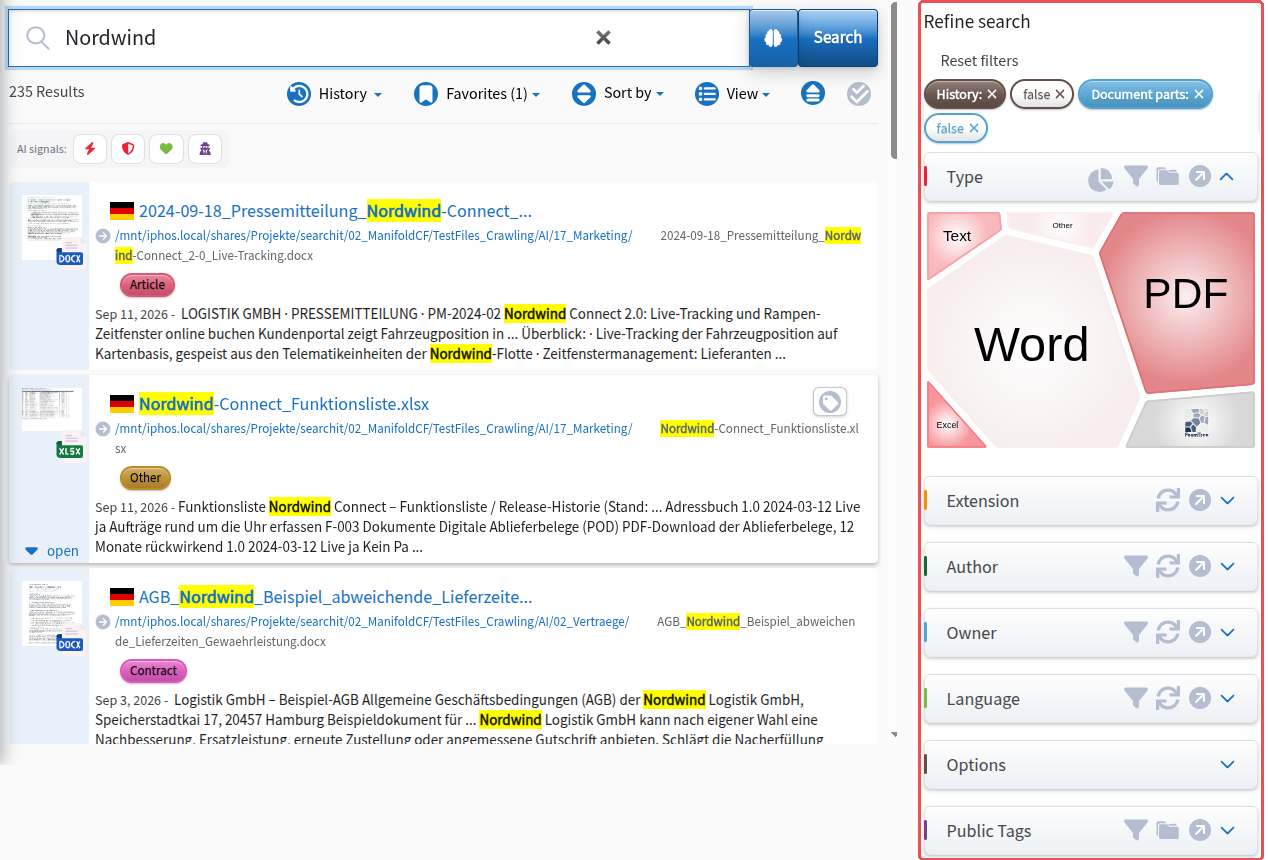
In the icon row above each filter, the chart icon lets you change the filter views, for example to tree, pie chart or foamtree. Which views are offered depends on the filter:
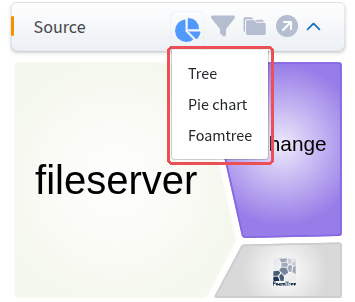
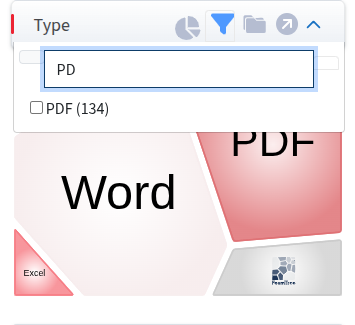
With the funnel icon you can narrow down your search:
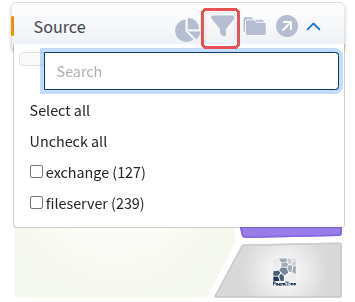
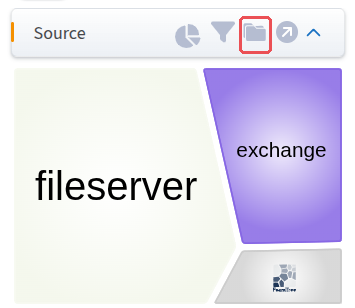
Clicking the folder icon switches between “Search recursively in subfolders” and “Search only in current folder”, and the arrow pointing to the top right (“Maximize”) enlarges the filter column to the whole page.
Filter types
The following filters are available to you:
- Display of result sets with drill-down and drill-up as well as multi-select in the form of a bar chart
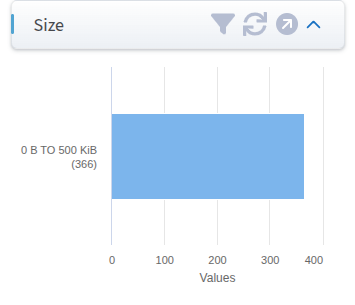
- Display of result sets with drill-down and drill-up as well as multi-select in the form of a pie chart
A single click selects or deselects a group of elements. Multi-select (i.e. selecting several elements) is possible by holding down the Control key (CTRL) during the selection.
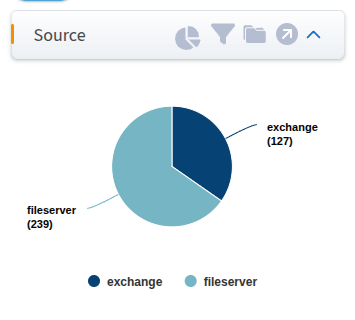
- Display of result sets with drill-down and drill-up as well as multi-select in the form of a donut chart
A single click selects or deselects a group of elements. Multi-select (i.e. selecting several elements) is possible by holding down the Control key (CTRL) during the selection.
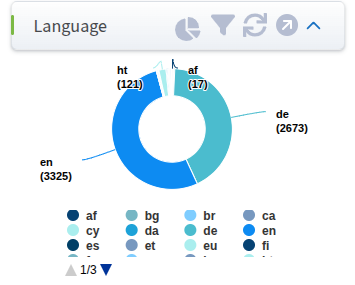
- Display of result sets with drill-down and drill-up as well as multi-select in the form of a foamtree
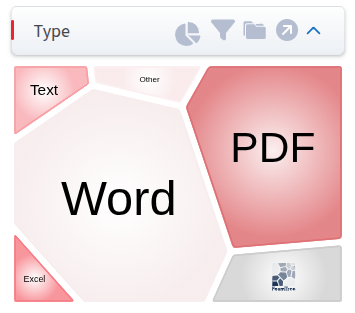
A single click selects a group of elements (e.g. emails); double-clicking takes you to the next level. Multi-select (i.e. selecting several elements in the foamtree) is possible by holding down the Control key (CTRL) during the selection. The path shown above the foamtree chart lets you select a higher level again: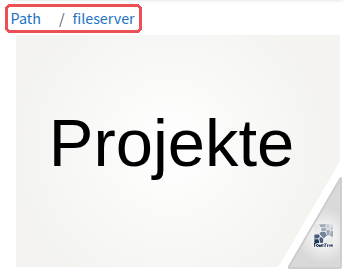
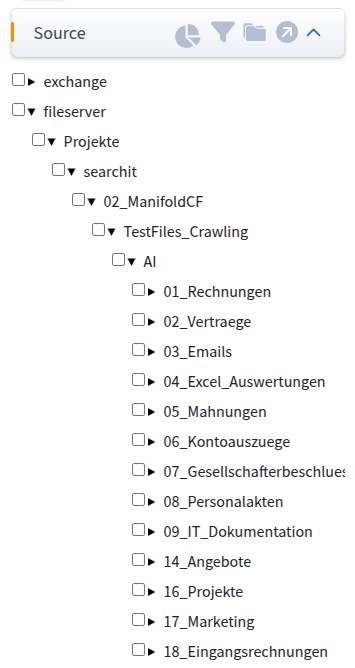
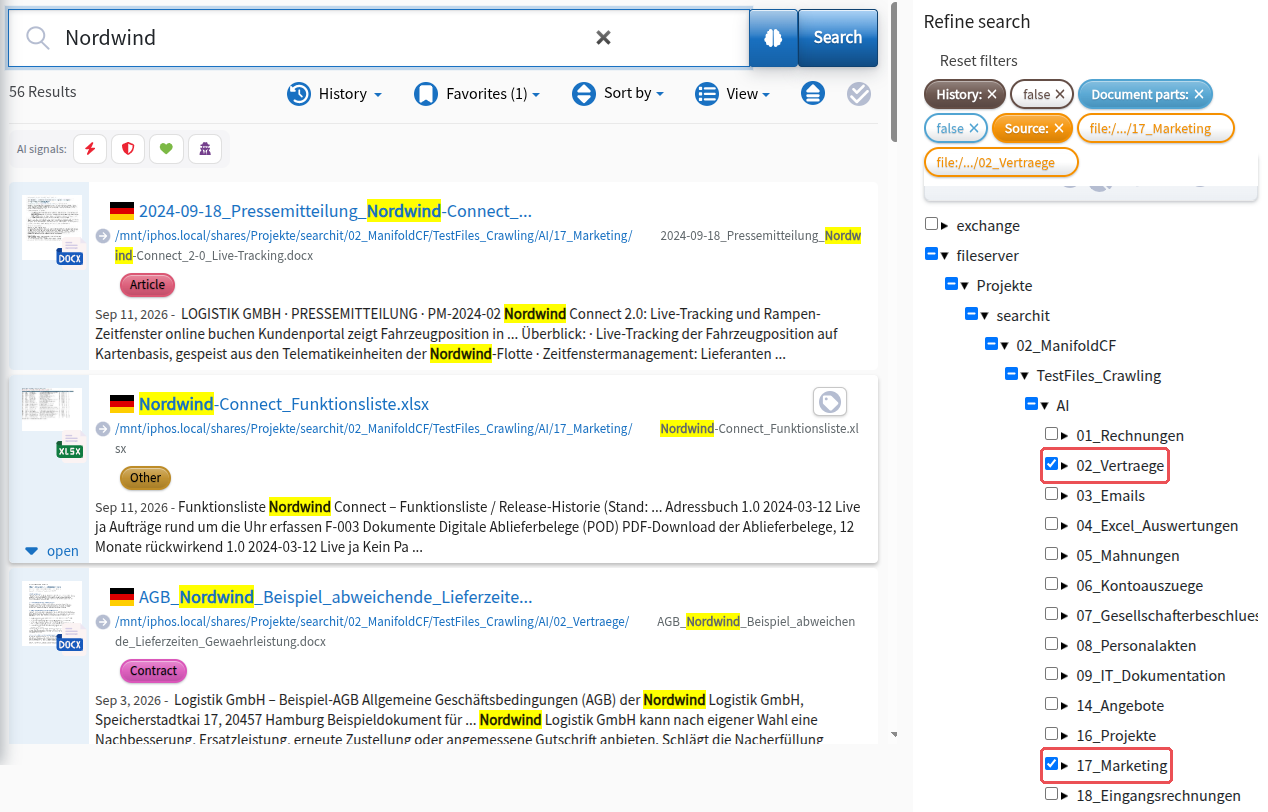
- Graphical filters by source and by path within the source, searching either recursively or only in a specific folder
Whether the search is recursive or limited to a specific folder can be set by clicking the folder icon in the filter row.
- Text display of result sets with text filtering and multi-select
- Text display of result sets as an expandable tree with multi-select
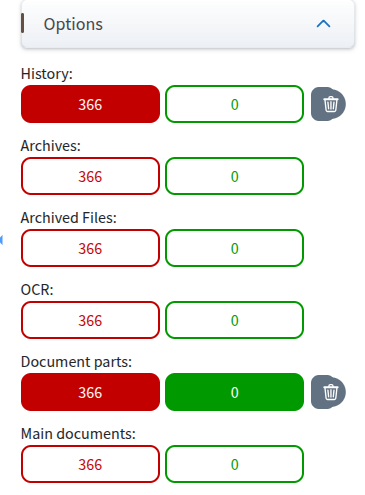
- Graphical filtering of yes/no fields:
- Archives & archived files (yes/no),
- text recognition (OCR) (yes/no),
- Document parts (display of long text documents split into 10-page parts, see Document options) (yes/no),
- Main documents (display of long files not split into parts) (yes/no),
- is attachment (yes/no):
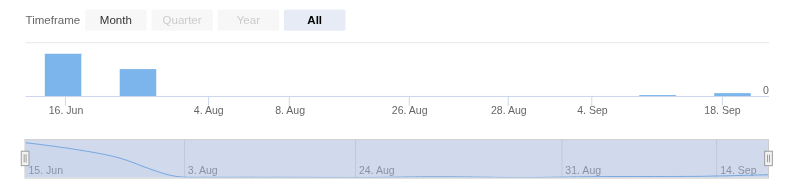
- Graphical preview of the time dimension for a quick overview

- Graphical detail view of the time dimension and filtering via text boxes (date entry) or graphical filtering.
The fields can be switched (last modified on, created on, last crawl, history date), see Time dimension.
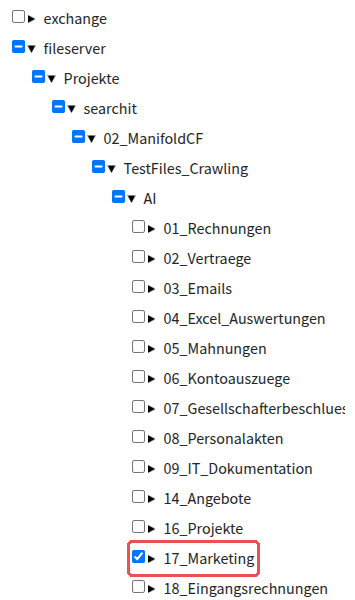
- Graphical filtering of tree structures (e.g. folders), searching either recursively or only in a specific folder
The filters support drill-down, drill-up and multi-selection. Example fields include source paths, file types, ...
- Multi-select filtering by the values of any value fields (e.g. type, language, author, email recipient, etc.)
- Multi-select filtering by the values of any value range fields (e.g. file size)
Depending on the source, new fields can also be displayed graphically. This applies to fields of the following types: value, value range, yes/no, tree structures
AI signals
Above the result list is the “AI signals” bar. It lets you narrow down the results by what the AI recognized in the document during indexing: Urgency, Risk, Sentiment and Personal data (PII). PII stands for Personally Identifiable Information, i.e. personal data. Clicking an icon opens the levels of the signal, for urgency for example “Critical”, “High” and “Normal”; you can check one or more of them.
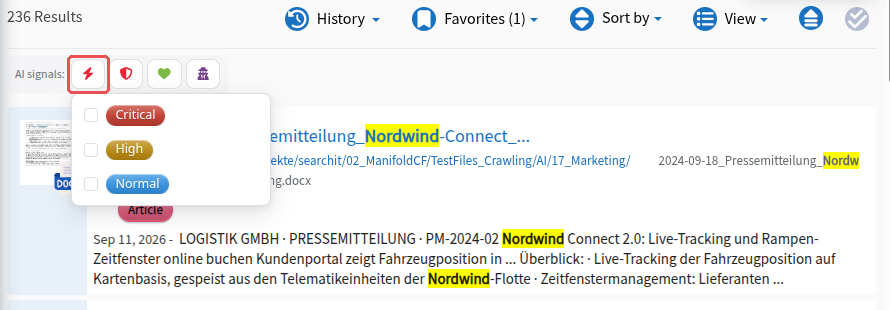
The bar is available in the main search as well as in the modules for documents and images. Which signals the AI recognized for an individual document is shown in its preview.