
Bookmarks / saved searches
Bookmarks let you save complex searches as favorites and call up the results again and again with a mouse click.
 Load video
What are bookmarks?
The bookmark function (saved search) lets you save frequently needed searches and call them up again with one click. This function is particularly useful for saving time and standardizing recurring searches with complex filter settings. For example, set the date filter in the time dimension to “last week”, “last month” or similar to call up, with one click, the documents matching your search query that were added in the specified period. Or have yourself informed by email notification about newly added documents that match your search criteria. Export the search results if, for example, you regularly have to create reports on various activities in project management or controlling.
Bookmark quick function
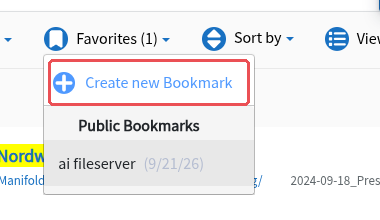
Below the interactive search bar you will find the “Favorites (n)” button with a bookmark icon; the number in brackets shows how many bookmarks are available to you (your own and publicly shared ones). Clicking it opens a drop-down menu from which you create and call up bookmarks.

Specifically, bookmarking offers the following functions:
- Creating bookmarks: Saving searches as bookmarks
- Loading bookmarks: Loading previously saved searches with updated search results
- Publishing bookmarks: Publishing bookmarks for other users (with the appropriate permission)
- Subscribing to email notifications: (with the appropriate permission) being informed regularly about newly added documents that match your saved search
- Bookmark management view: Browsing and deleting saved bookmarks
Creating a bookmark
Create a bookmark by clicking “Favorites (n)” and choosing “Create new Bookmark” (plus icon) in the drop-down menu. Bookmarks can only be created for an active search.
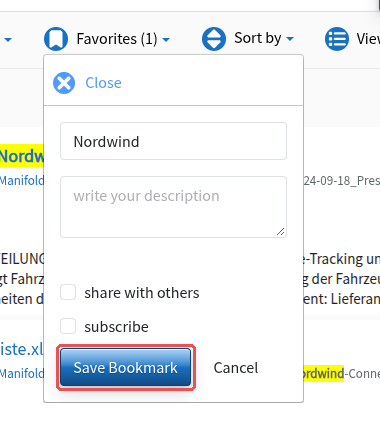
A form then appears in which you can enter the following details for the bookmark:
- Title of the bookmark (by default, searchit suggests the search terms you entered as the title)
- Further information (enter additional information about the search and the bookmark)
- Share with others (makes the bookmark visible to other users; only with the appropriate permission)
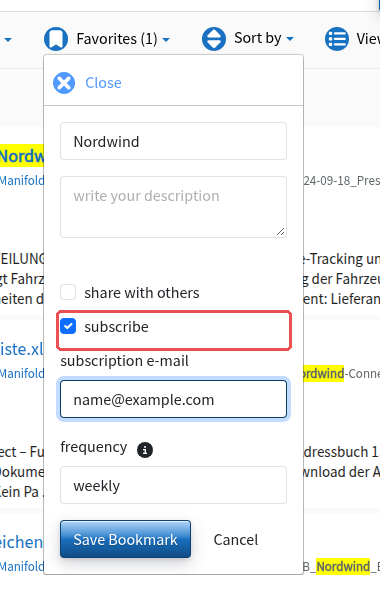
- Subscribe (email notifications for your bookmark, with subscription email and frequency; only with the appropriate permission)
Click “Save Bookmark” to create the bookmark.
Loading, editing & deleting a bookmark
Once you have created a bookmark (favorite), you can call it up, edit it or delete it. To do so, click “Favorites (n)” below the interactive search bar.
This gives you a drop-down menu with your own bookmarks and, below them, the publicly shared ones. It offers the following options:
- Loading the bookmark (calling up the saved search by clicking the bookmark title)
- Editing the bookmark (by clicking the pencil icon, only for your own bookmarks)
- Deleting the bookmark (by clicking the trash can icon, only for your own bookmarks)
Subscribing to email notifications
You can activate an email notification for each of your bookmarks. This way you are informed automatically as soon as new content appears that matches the filter criteria you defined (e.g. document type, storage location, author, period, etc.).
The following notification intervals are available:
- Daily: delivered at 8:00 a.m.
- Weekly: every Monday at 8:00 a.m.
- Monthly: on the 1st of each month at 8:00 a.m.
You set this when saving or editing your bookmarks using the “subscribe” check box; whether it is shown depends on your permission.
Bookmark management view
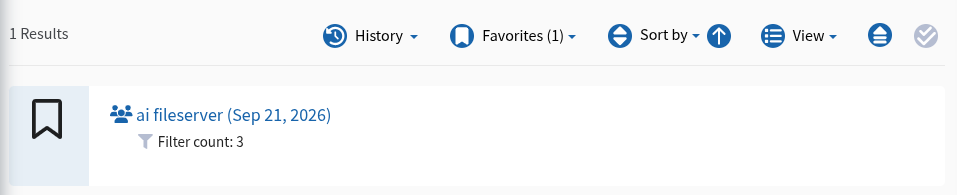
If the “Bookmarks” module is set up for your organization, it gives you the overview of all saved bookmarks, your own and publicly shared ones (recognizable by the person icon). For each bookmark you see:
- Bookmark title and date of the last change
- Number of saved filters
Clicking the title loads the saved search.
Last updated on 21 September 2026