
Icons & shortcuts
Some screenshots still show the German user interface.
Here you will find an overview of the icons used for navigating the searchit search results and of our keyboard shortcuts for faster searching with precise results.
The icons in the search results
| Icon | Name | Description |
|---|---|---|
 | Tagging | Assign your search results to existing tags (keywords) or create new tags |
 | Delete | Request deletion of the result |
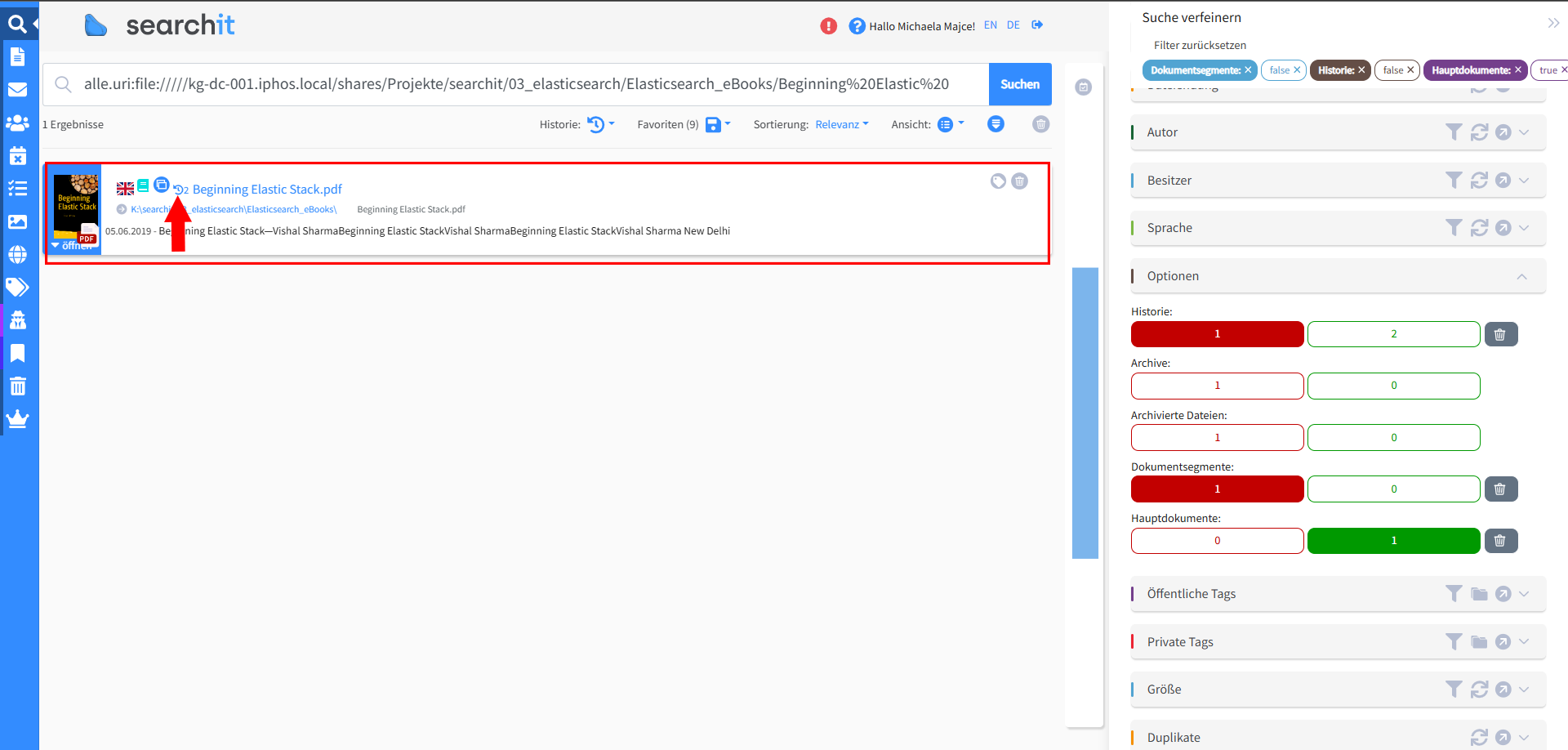 | History | Opens earlier versions of a document stored in the index |
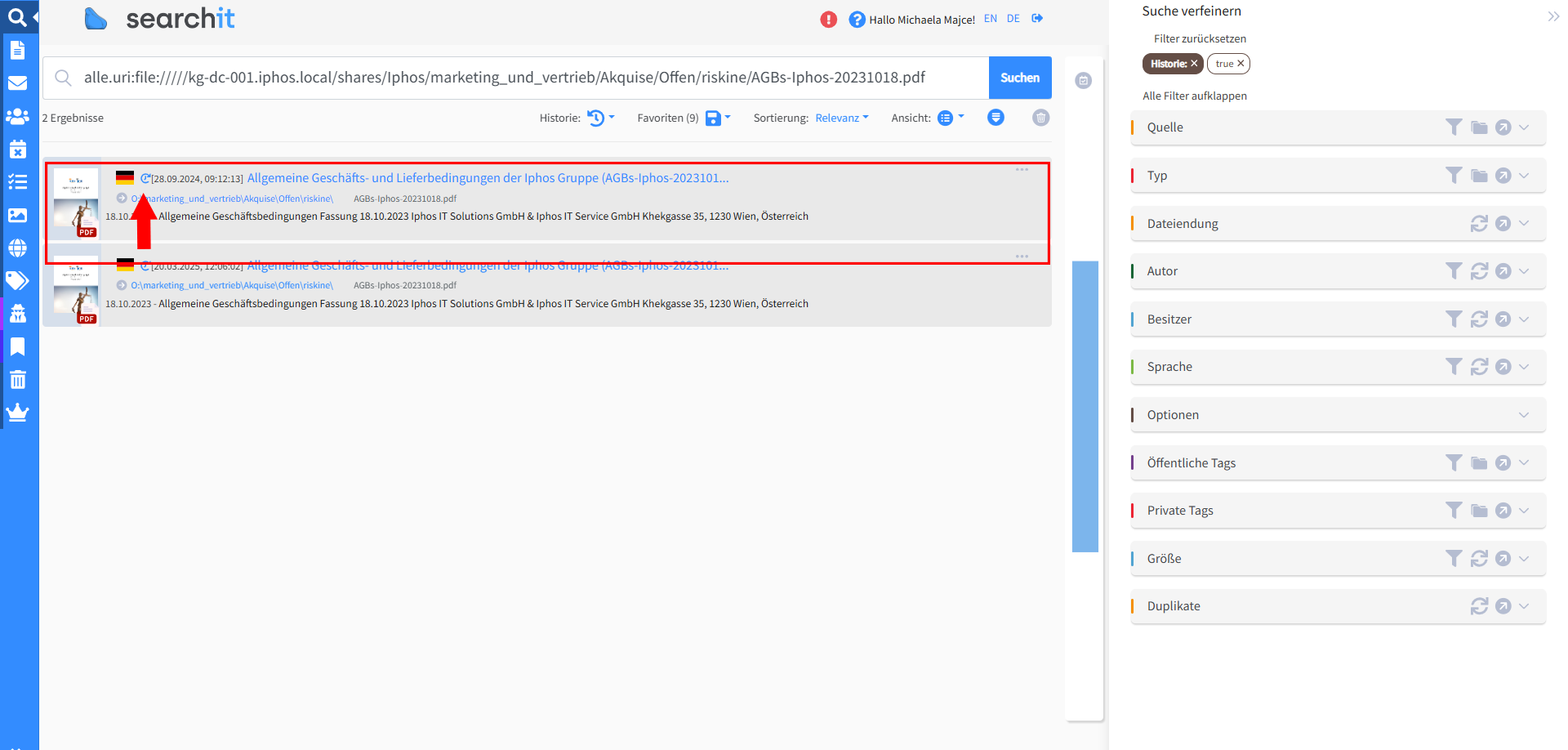 | Back from history | Returns to the current version of the document |
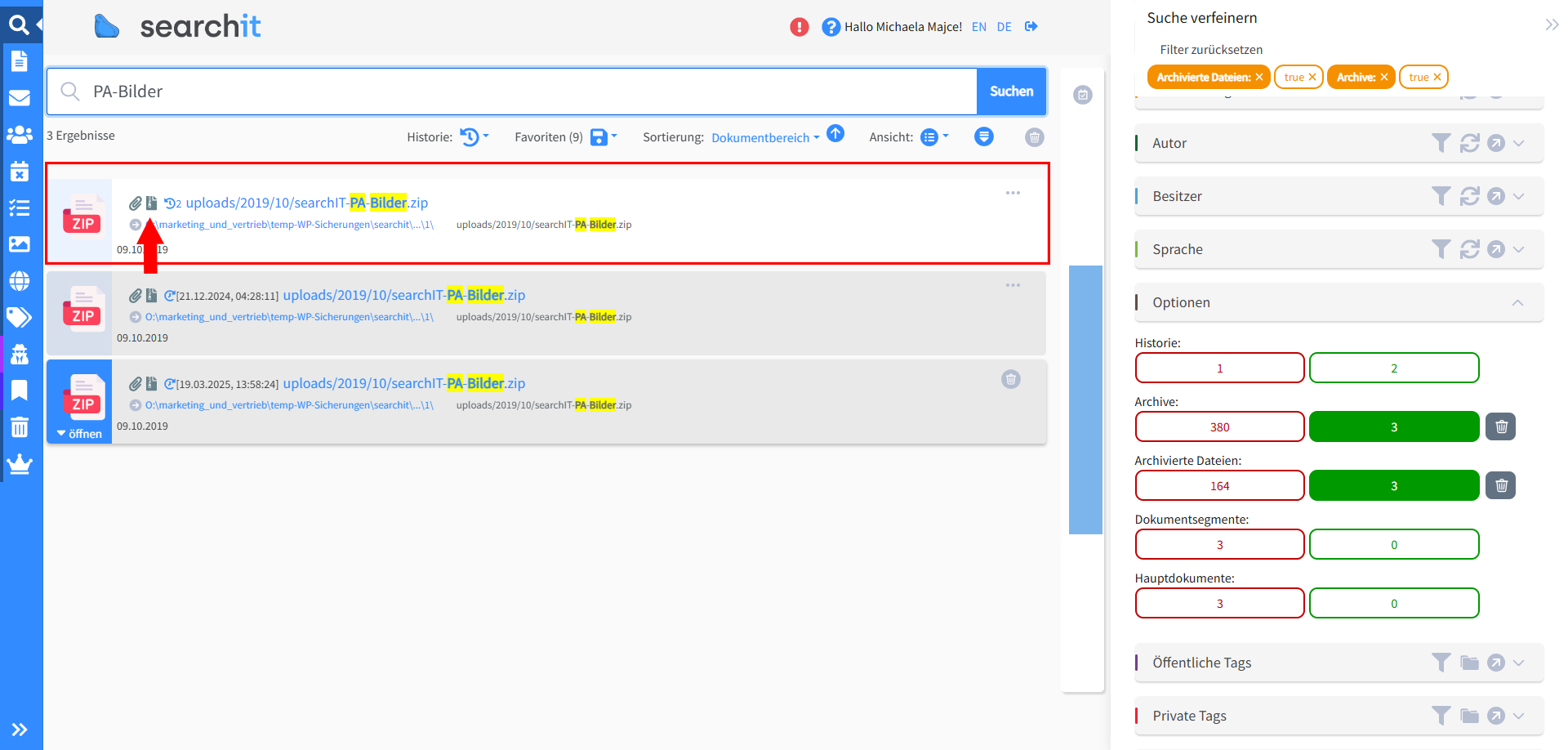 | Archive elements | Shows the files contained in a file archive (zip, rar, etc.) |
 | File archive | Shows the file archive (zip, rar, etc.) that contains the file |
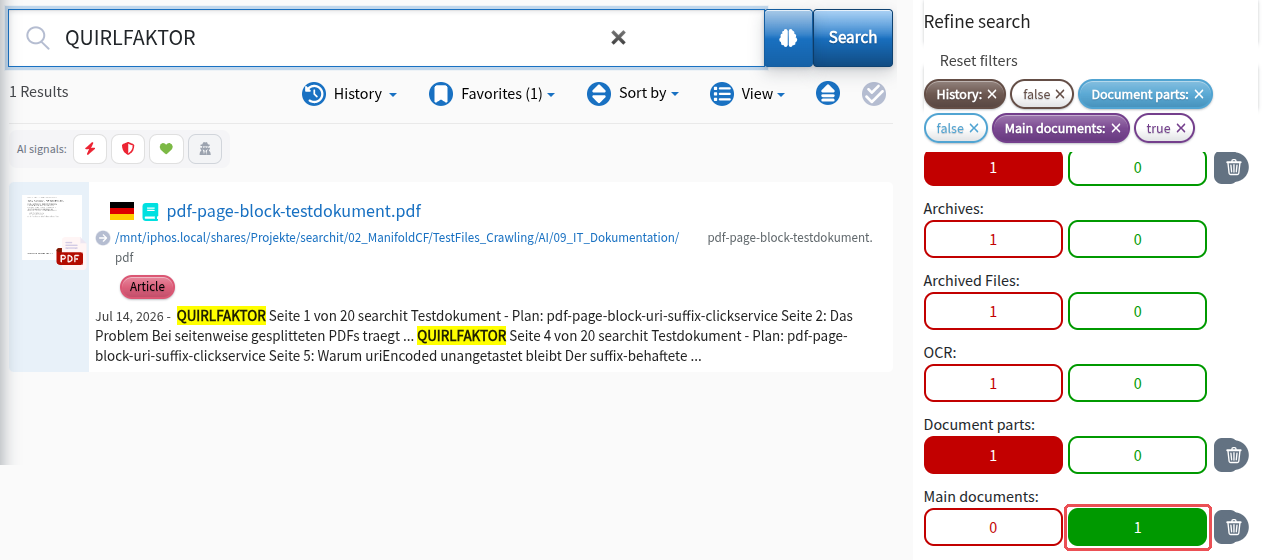 | Main document | When clicked, shows the associated document parts (document segments) |
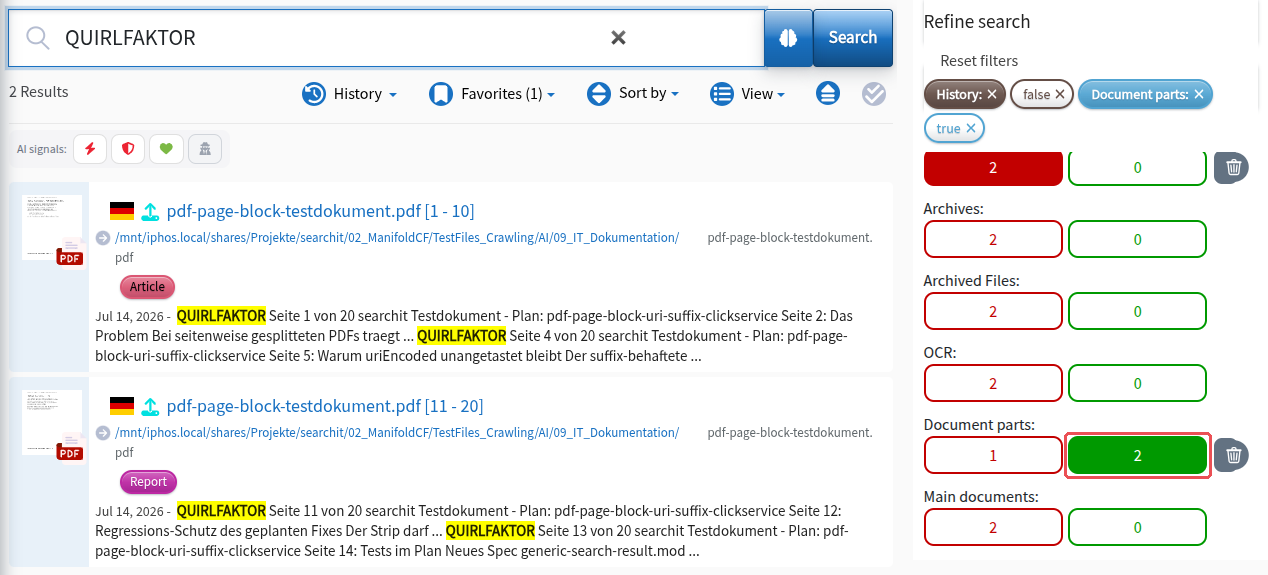 | Document parts (document segments) | When clicked, jumps back to the main document |
 | Duplicates | Opens an overview of the existing duplicates (determined by checksum); hovering shows the number of duplicates |
The icons in the PDF preview
ℹ️ The PDF preview shows the document in your browser’s PDF viewer. The toolbar therefore comes from the browser and looks different depending on the browser; the table shows an example.
| Icon | Name | Description |
|---|---|---|
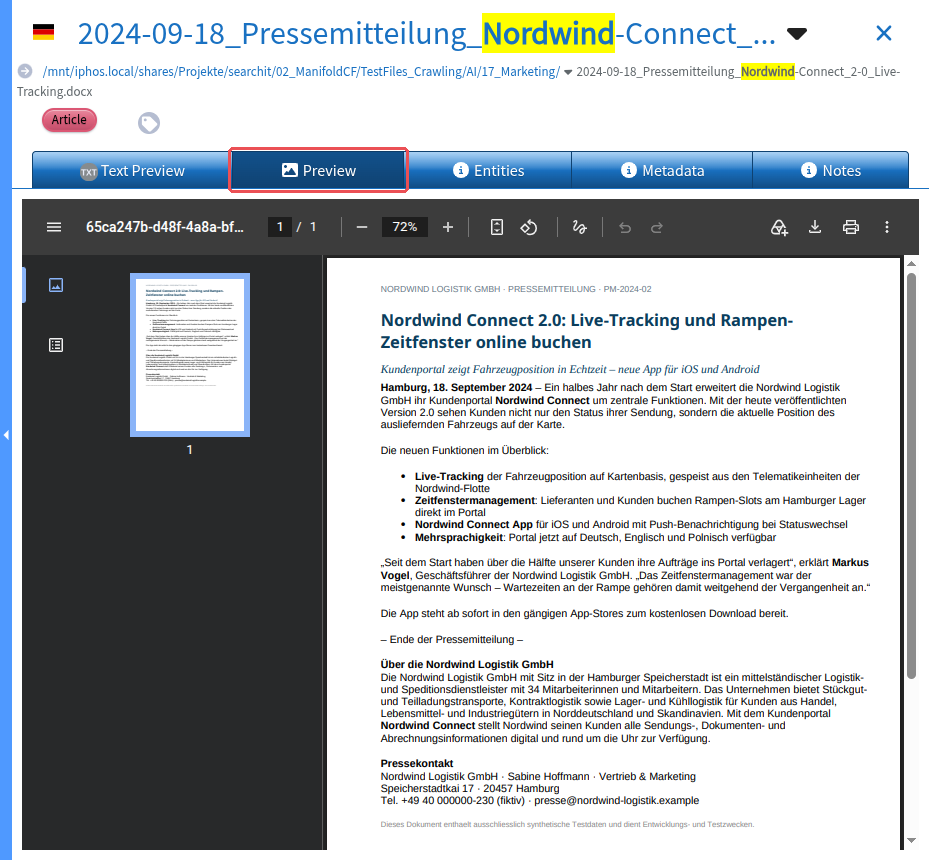 | Overview | Turns the page-based document preview on or off. |
| Fit view | Fits the document preview either to the height or to the width. |
| Rotate document | Rotates the preview counterclockwise in 90° steps. |
| Download | Downloads the document to your local device. |
| Prints the displayed document. |
The icons in the filter overview
| Icon | Name | Description |
|---|---|---|
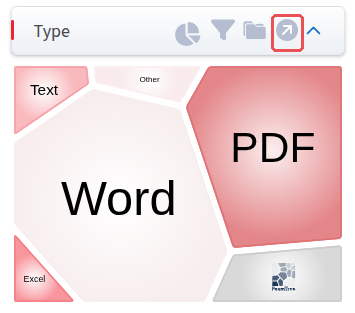 | Full-screen view | Opens the filter selection in full-screen view |
| Visualization view | Lets you display the filter values as a tree, pie chart or foamtree. |
| Filter input | Opens a text field for entering a filter value manually or for selecting filter options with checkboxes. |
| Recursive search - ON | Toggles a recursive search that also searches sub-elements. |
| Recursive search - OFF | Toggles a non-recursive search that only searches elements in the current folder |
| Refresh filters | Reloads the filter area, e.g. when new data is available or changes have been applied. |
| Reset filters | Removes the current filter settings in the respective area. |
| Timeline | Opens an overlay for filtering the search results by date ranges, by creation date, last modification or other available time stamps. |
Search interaction, menu and system icons
| Icon | Name | Description | Category |
|---|---|---|---|
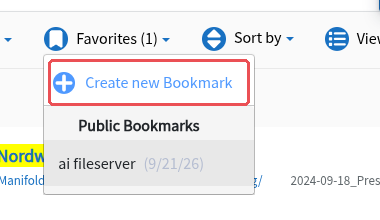 | Create bookmark | Opens a context window in which you can save the current filter settings (with or without a search term) as a search bookmark, for quick access to recurring searches. | Search interaction icons |
| Edit bookmark | Edit the settings of your search bookmarks or your subscriptions | Search interaction icons |
| Delete bookmark | Clicking this icon deletes the bookmark. | Search interaction icons |
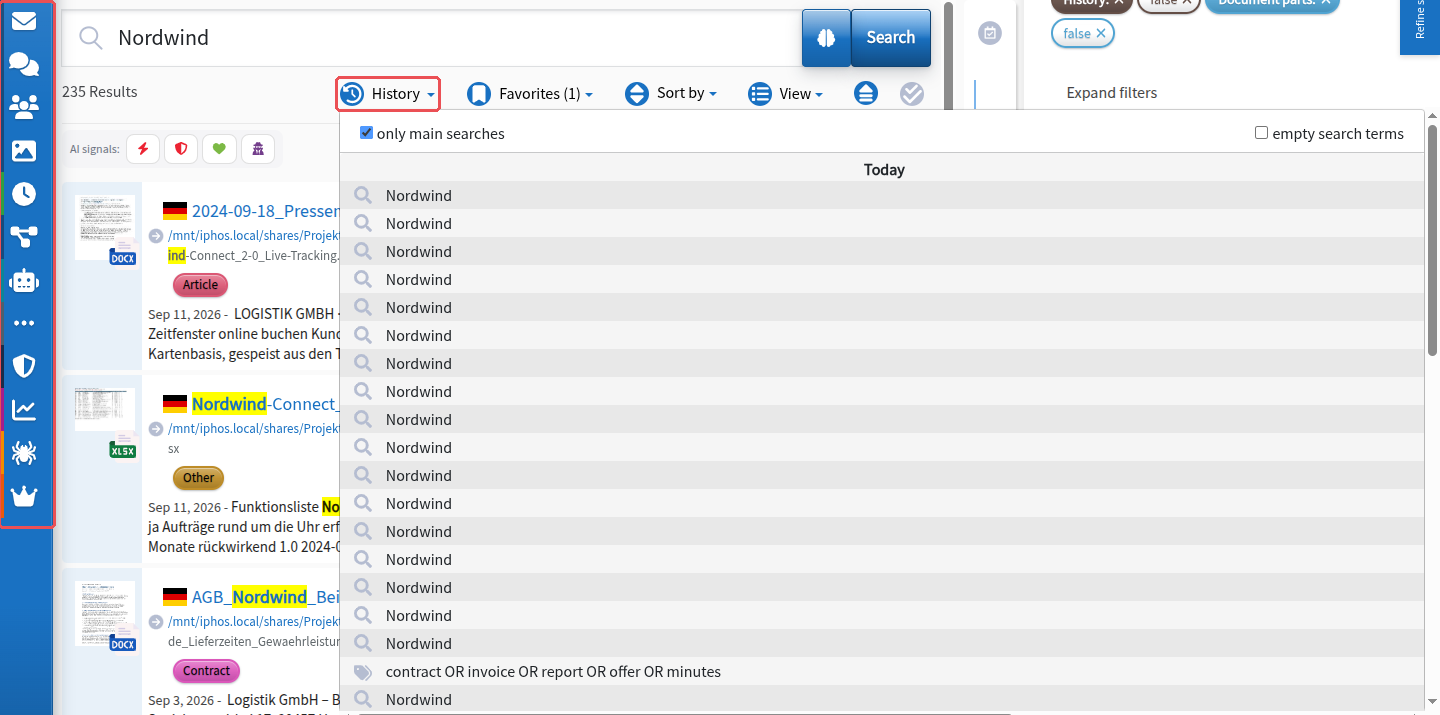 | History | Opens an overview of the most recent searches, including search term, search type and filter status. | Search interaction icons |
| Search in all sources | Runs a search in all connected data sources. | Search interaction icons / menu icons |
| Search in documents | Searches specifically in files and text documents (e.g. PDFs, Word files, Excel, PowerPoint). | Search interaction icons / menu icons |
| Search in emails | Searches email content, including subject, attachments and sender information. | Search interaction icons / menu icons |
| Search in contacts | Shows results from the contacts area, e.g. people, companies or address data. | Search interaction icons / menu icons |
 | Search in appointments | Searches calendar entries, meetings or other time-related events. | Search interaction icons / menu icons |
| Search in tasks | Searches to-dos and tasks. | Search interaction icons / menu icons |
| Image search | Searches various image file formats and shows them as thumbnails. | Search interaction icons / menu icons |
| Web search | Searches content from connected web sources or web portals. | Search interaction icons / menu icons |
| Tag search | Searches for public or private tags. | Search interaction icons / menu icons |
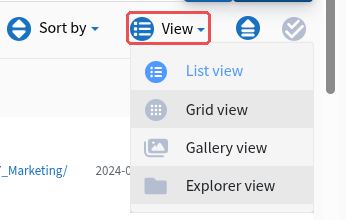 | View | Determines which view option is used to display the search results. | Search interaction icons |
| List view | Shows the search results as a compact list. | Search interaction icons |
| Grid view | Presents results in a visually looser layout as cards or tiles. | Search interaction icons |
| Gallery View | Shows the search results as an image gallery. | Search interaction icons |
| Explorer view | Shows the search results in a structured form, as in the Windows file manager. | Search interaction icons |
| CSV export | Exports the selected search results to a CSV file; found in the bulk operations menu (see Export as CSV) | Search interaction icons |
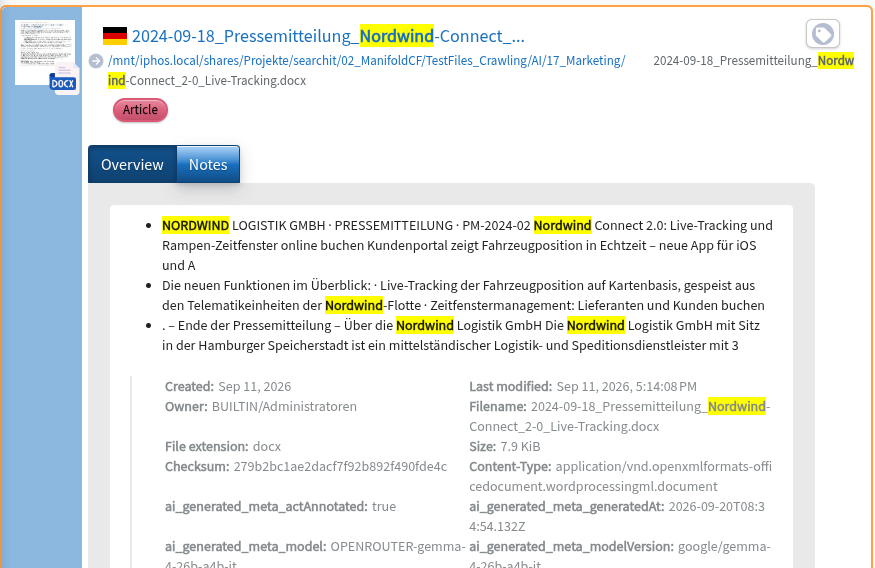 | Toggle search results - OPEN | Opens the short overview for all results found | Search interaction icons |
| Toggle search results - CLOSED | Closes the short overview for all results found | Search interaction icons |
 | Logout | Log out of the application | System icons |
Working with keyboard shortcuts
| Shortcut | Function | Category |
|---|---|---|
| CTRL + ENTER | opens / closes the preview of the active search result | Navigation |
| Right arrow key | opens the preview of the active search result | Navigation |
| Left arrow key | closes the preview | Navigation |
| CTRL + Space | adds the active search result to the selection | Navigation |
| Down arrow key | moves to the next search result | Navigation |
| Up arrow key | moves to the previous search result | Navigation |
| CTRL + "." | shows the search field suggestions | Interactive search bar |
The arrow keys work in the list view, not in the grid view. The active search result is the one you navigated to with the arrow keys; without an active search result, CTRL + ENTER, CTRL + Space and the right and left arrow keys have no effect.
You will find more information about the keyboard shortcuts and best practices on our shortcut page.
Last updated on 23 September 2026